Would you like to have a visual, elegant, and minimalist calendar right on your home screen? Today I’m bringing you a creative idea you can set up yourself with a bit of design and the exclusive Nothing OS photo widget. The result? A widget that changes every day, showing a different image with the current day’s number. Perfect if you’re into the Nothing aesthetic or just want something unique on your screen.
Step 1: Design your 31 images for the month
This is the most time-consuming part — but also the most fun. To make it work as a calendar, you’ll need to create 31 images, one for each day of the month. Each image should feature a nice design with the day’s number (from 1 to 31). I used Canva, but any design or editing app works.
In my case, I went for a black and white, monochrome style, with the numbers shown as dots, inspired by Nothing’s visual identity.
You can use personal photos, illustrations, minimal fonts, or whatever style you like. Your imagination is the limit!
Important: Make sure the images are square. If you plan to use the round widget, ensure your design is centered, so it displays correctly.
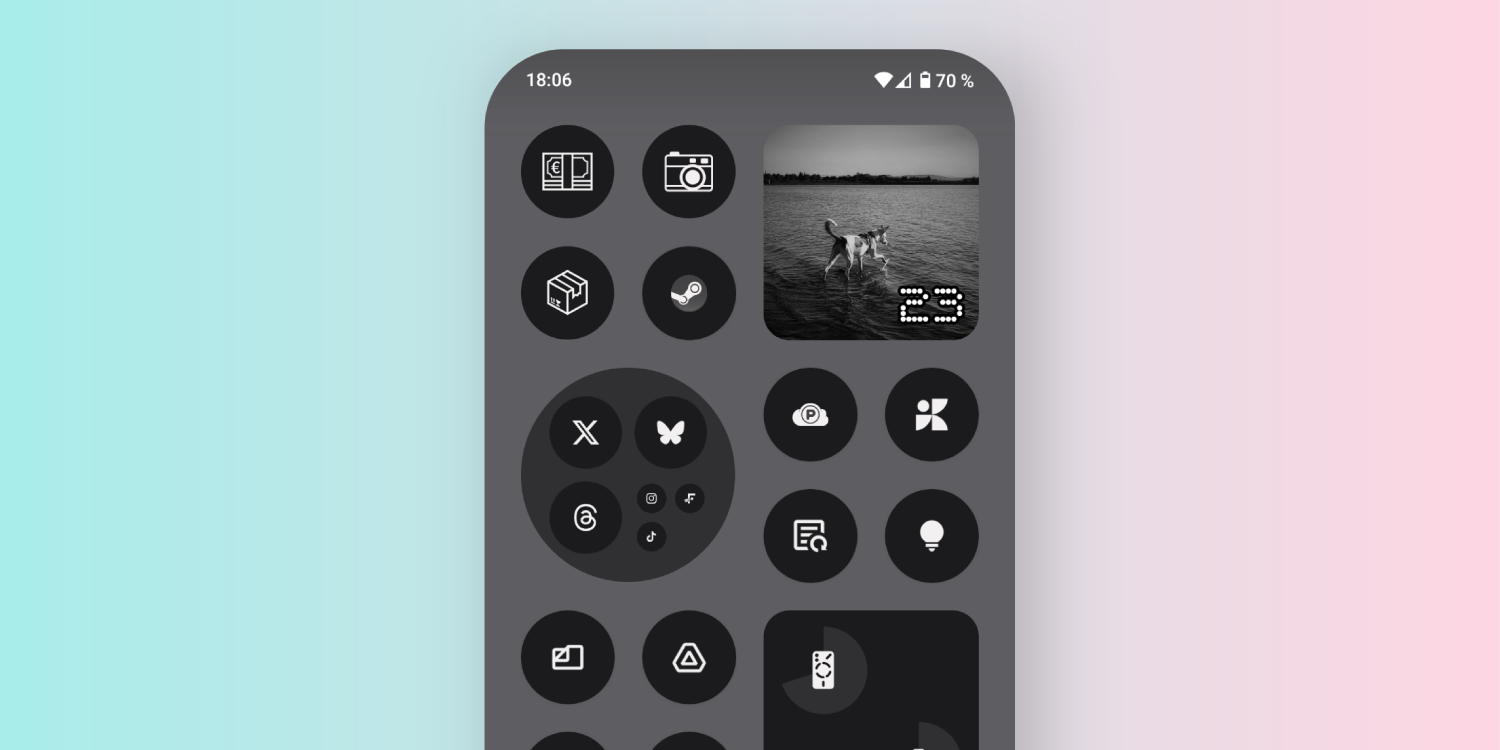
Step 2: Add the photo widget to your home screen
Once your 31 images are ready, it’s time to set it up on your phone:
Long press on your home screen
Tap Widgets
Look for the Nothing OS Photos widget
Choose the square or round version depending on your preference and add it
Once added, tap the gear icon on the widget to access settings
Step 3: Set up the widget to work like a calendar
This is where the magic happens. In the widget settings:
Tap “Add photos” and select your 31 images
⚠️ Make sure to add them in order: start with image for day 1, then day 2… all the way to 31
Then, under “Auto change”, select “Every day”
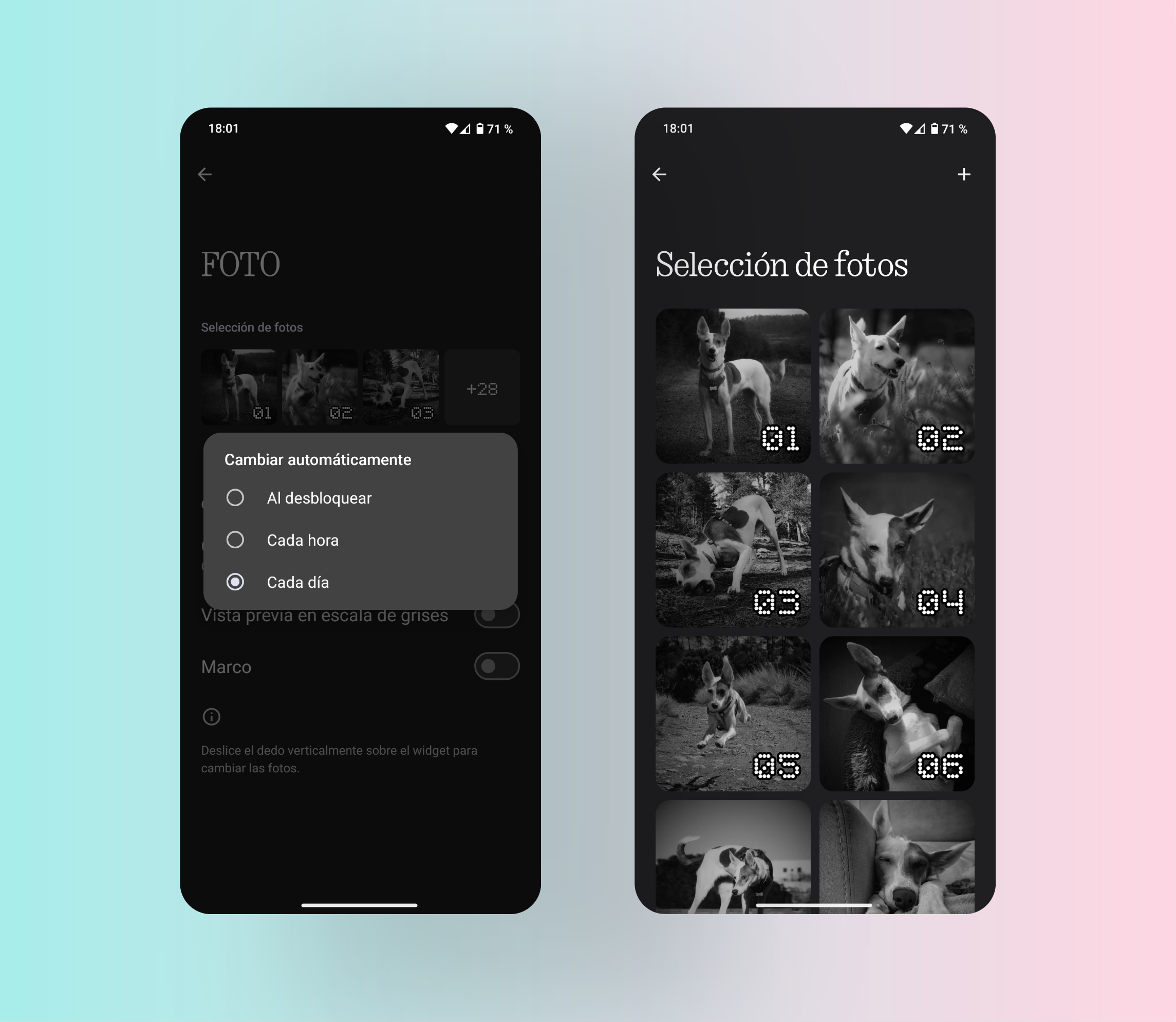
And that’s it! Your custom visual calendar is now live on your screen. On the first day, you might need to manually swipe up or down within the widget to show the correct image. After that, the widget will automatically switch at midnight every day to show the next number.
It’s a cool detail for those who love design, structure, and useful widgets.
Keep in mind: if the month has fewer than 31 days (like February), the widget will still cycle through days 29, 30, and 31. When the new month starts, you’ll need to swipe manually back to day 1. Not the most seamless solution, but it’s a small compromise if you love the concept.
