Hey Community,
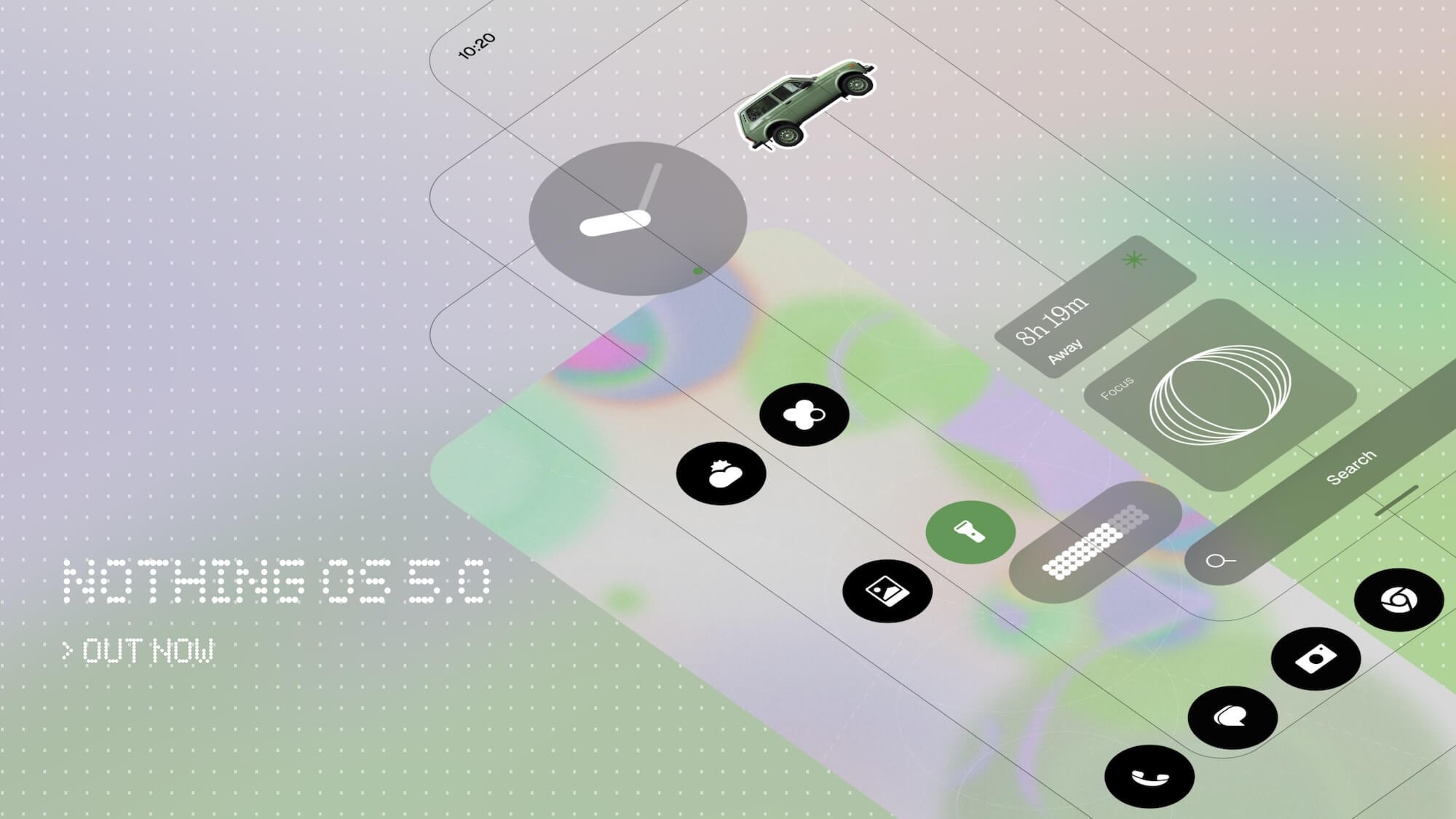
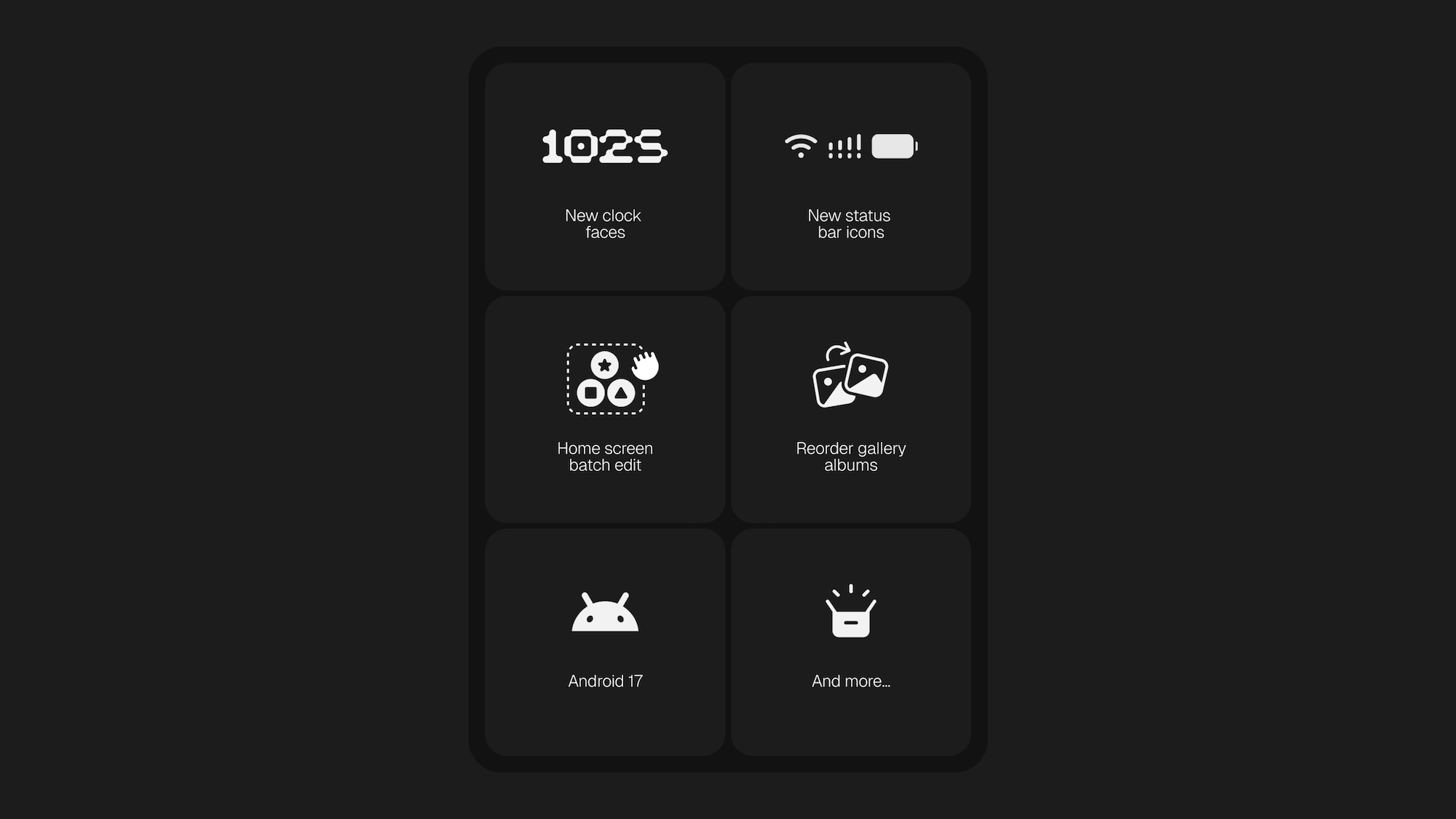
Nothing OS 5.0 is our next major software update, with a new look across the system, more ways to personalise your phone, faster and smoother performance, updates to our Essential AI tools and the latest from Android 17.
The update touches a lot of the things you use every day, including the home screen, lock screen, Camera, Gallery, widgets and Essential Space, along with smaller changes that make common actions quicker and easier.
It also marks the next step in how Nothing OS has evolved since 1.0. We’ve shared more about that design journey, and where we’re taking Nothing OS next, here.
Here’s what’s new.
—
Refreshed design
🎨 Nothing OS 5.0 introduces a wider visual refresh across the system. Typography, icons, spacing, materials and motion have been refined across Settings, the status bar, Camera, Gallery, widgets and system controls.
New system typeface
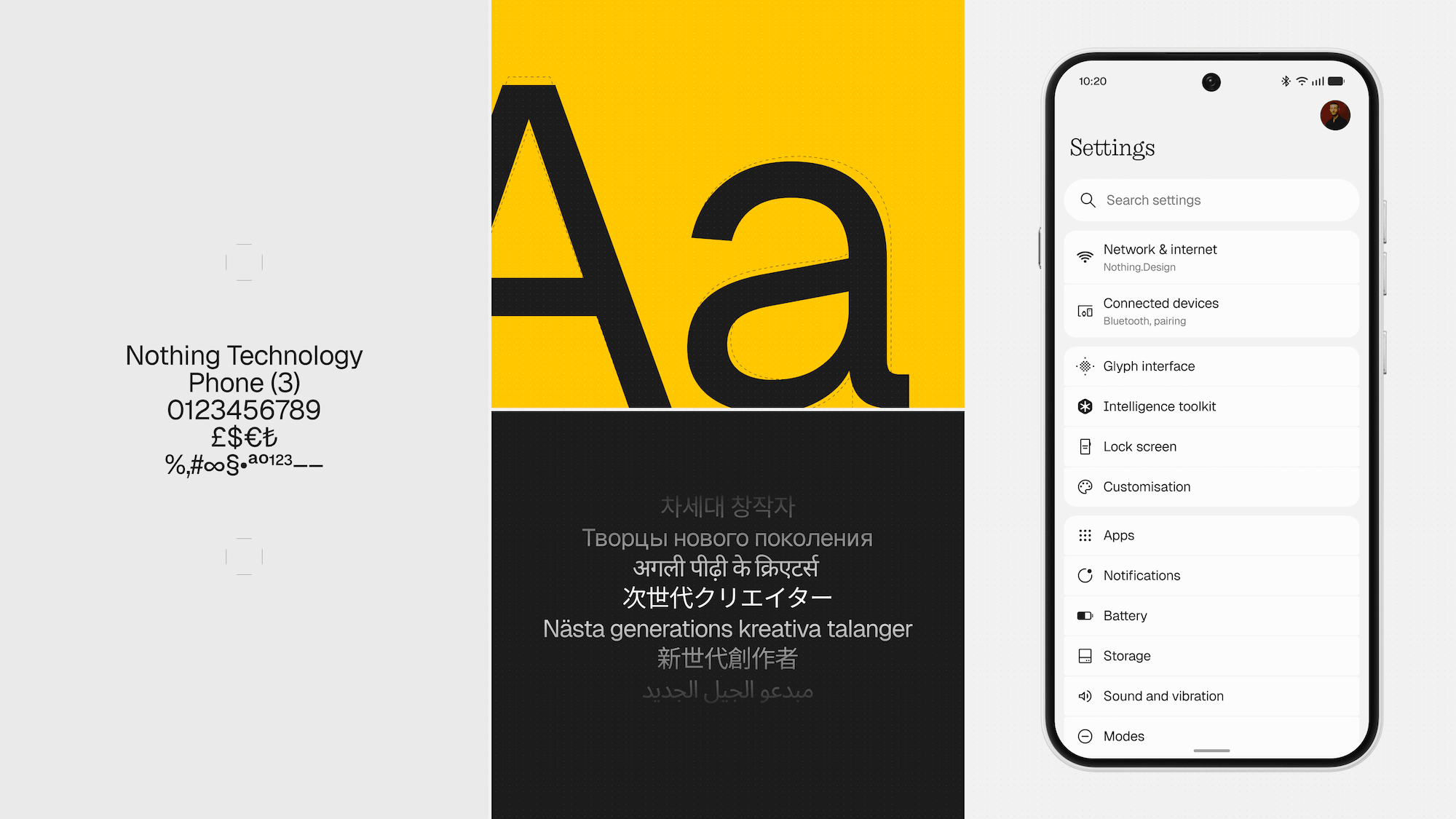
Nothing OS 5.0 introduces Geist as the new system typeface.
Geist helps us balance clarity, character and consistency across the system. It improves legibility across everyday parts of the interface, while giving Nothing OS a clearer and more distinctive visual character.
Combined with refinements to text scale, spacing and hierarchy, it creates a more consistent visual language across Settings, widgets, menus and other parts of the OS, making information easier to navigate while keeping the experience distinctly Nothing.
Redesigned Settings
⚙️ Settings has been redesigned with new icons, updated spacing and corner shapes, and more consistent layouts. Information is grouped more clearly, with commonly used categories given dedicated entries to make Settings easier to scan and navigate.
Cleaner status bar
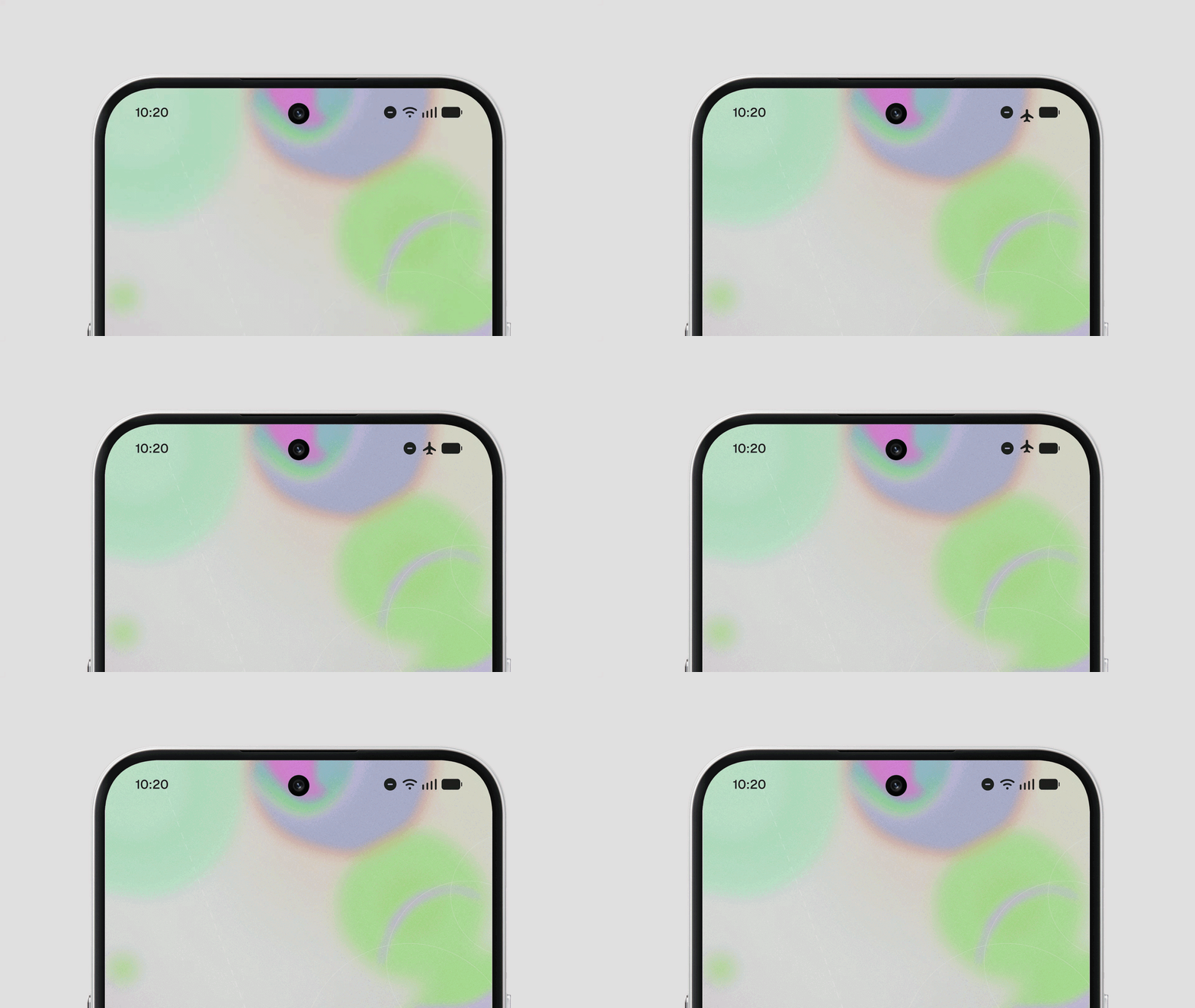
✈️ The status bar gets custom-designed system icons and more expressive animations. Signal, Wi-Fi, battery and other indicators are clearer and more consistent, while subtle animations give more immediate feedback as their states change.
Camera updates
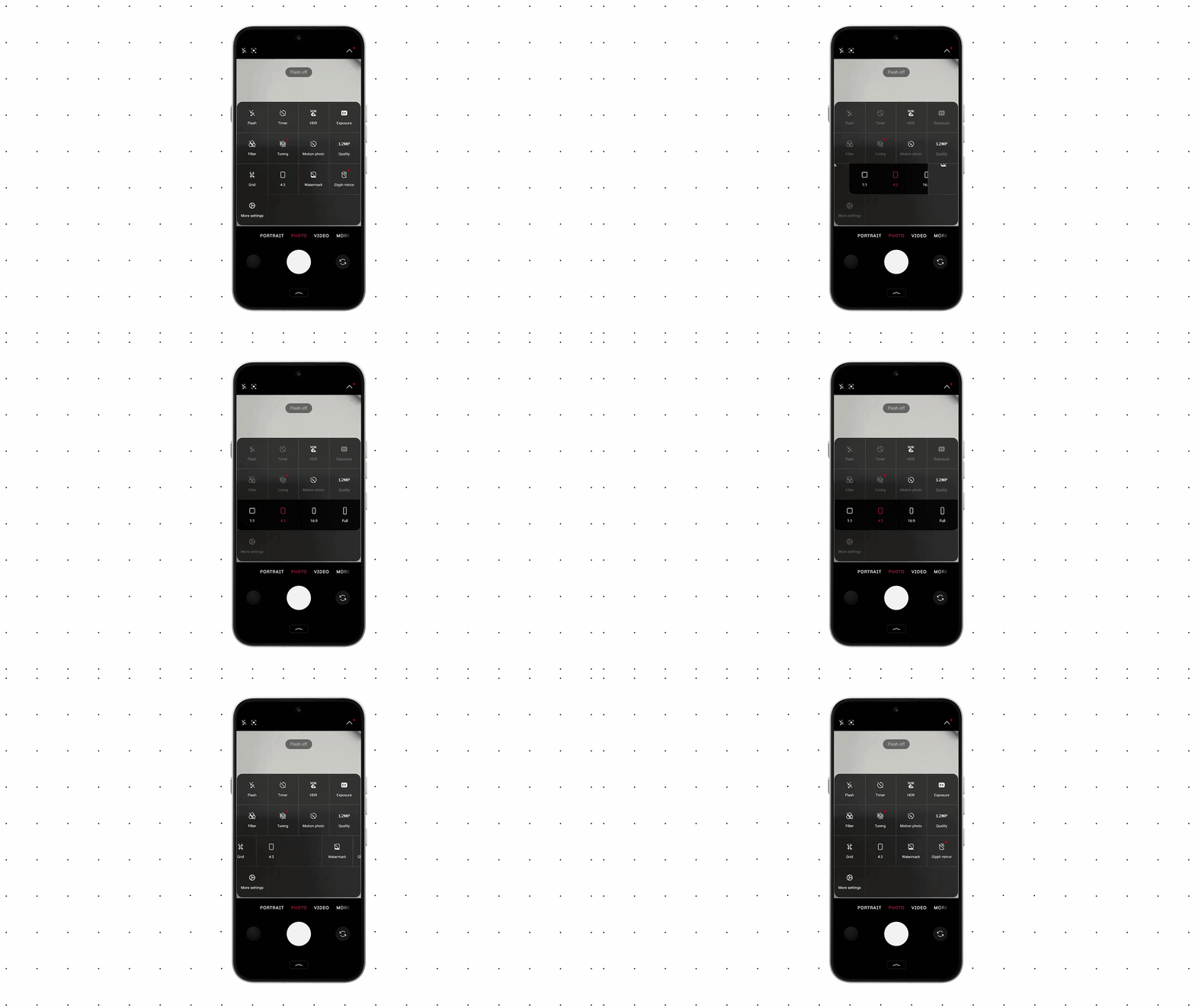
📸 Camera introduces updated icons, cleaner controls and more polished motion, making important controls easier to identify without distracting from the viewfinder.
QR code scanning is also easier to use. Once a QR code is recognised, its result stays in a fixed position rather than moving with the code in the frame. That gives you a stable target to tap, so you don’t have to keep lining the camera up or rescan the code.
Nothing Gallery updates
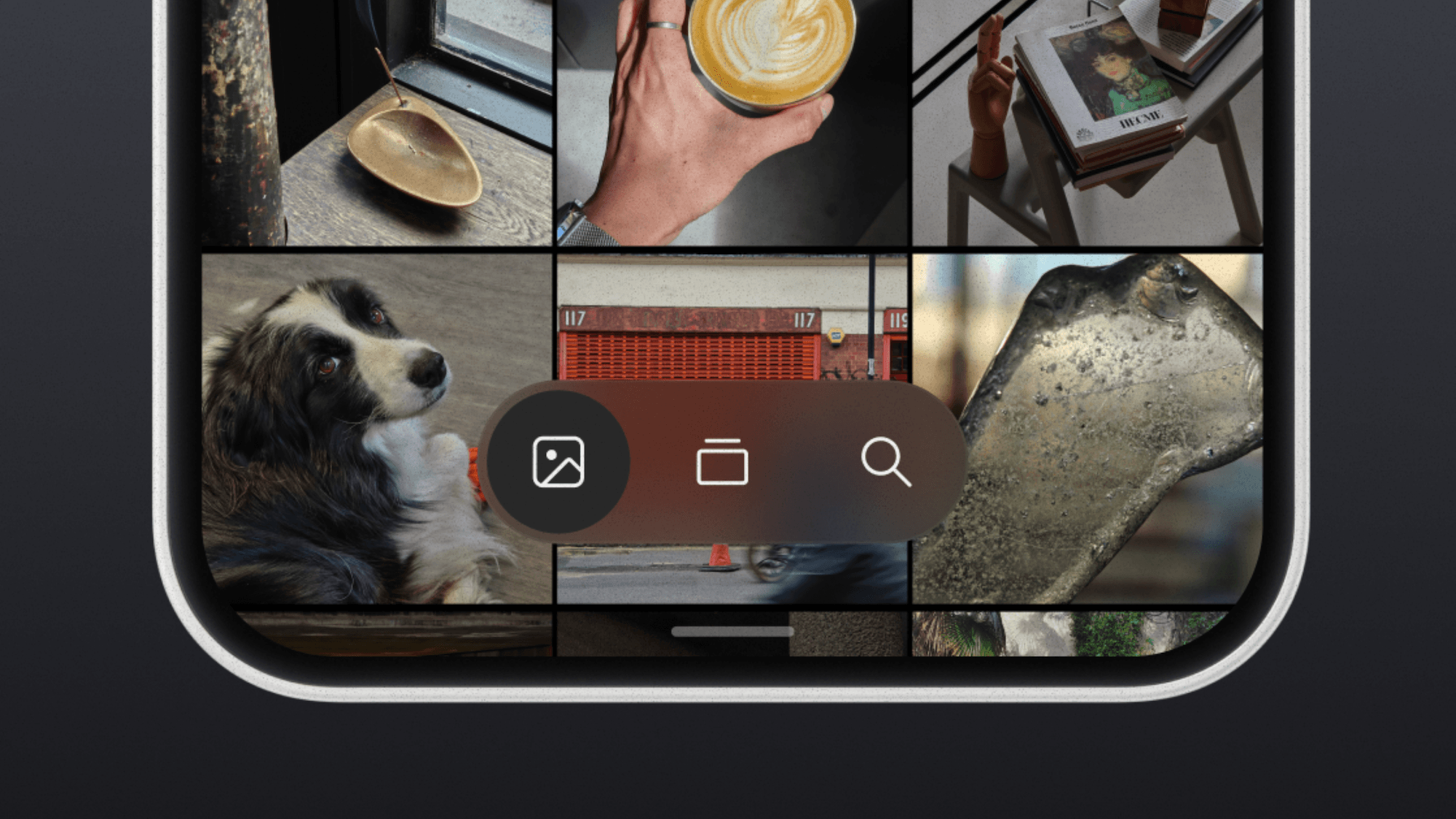
🖼️ The main Photos view can now be sorted by Recently added or Captured date, with your selection remembered across sessions. You can also filter by All, Favourites, Edited, Photos, Videos or Screenshots, and sorting and filtering can be used together.
The Albums page has also been redesigned. Frequently used albums can sit more prominently, while less-used albums appear in a smaller section below. Long-press and drag an album to reorder it or move it between sections, or use Edit mode to manage multiple albums at once.
Transparent details also appear across parts of Gallery, bringing it into the wider Nothing OS 5.0 design language.
—
Deeper personalisation
Nothing OS 5.0 takes personalisation beyond simply adding more options. The idea is to give you more freedom to shape the experience around your own taste, while keeping the system coherent and recognisably Nothing.
Wallpaper-adaptive colour, new lock screen styles, widgets and easier home screen editing all build on that, giving you more ways to make the phone feel like yours without turning the experience into a mix of unrelated styles.
Redesigned homescreen
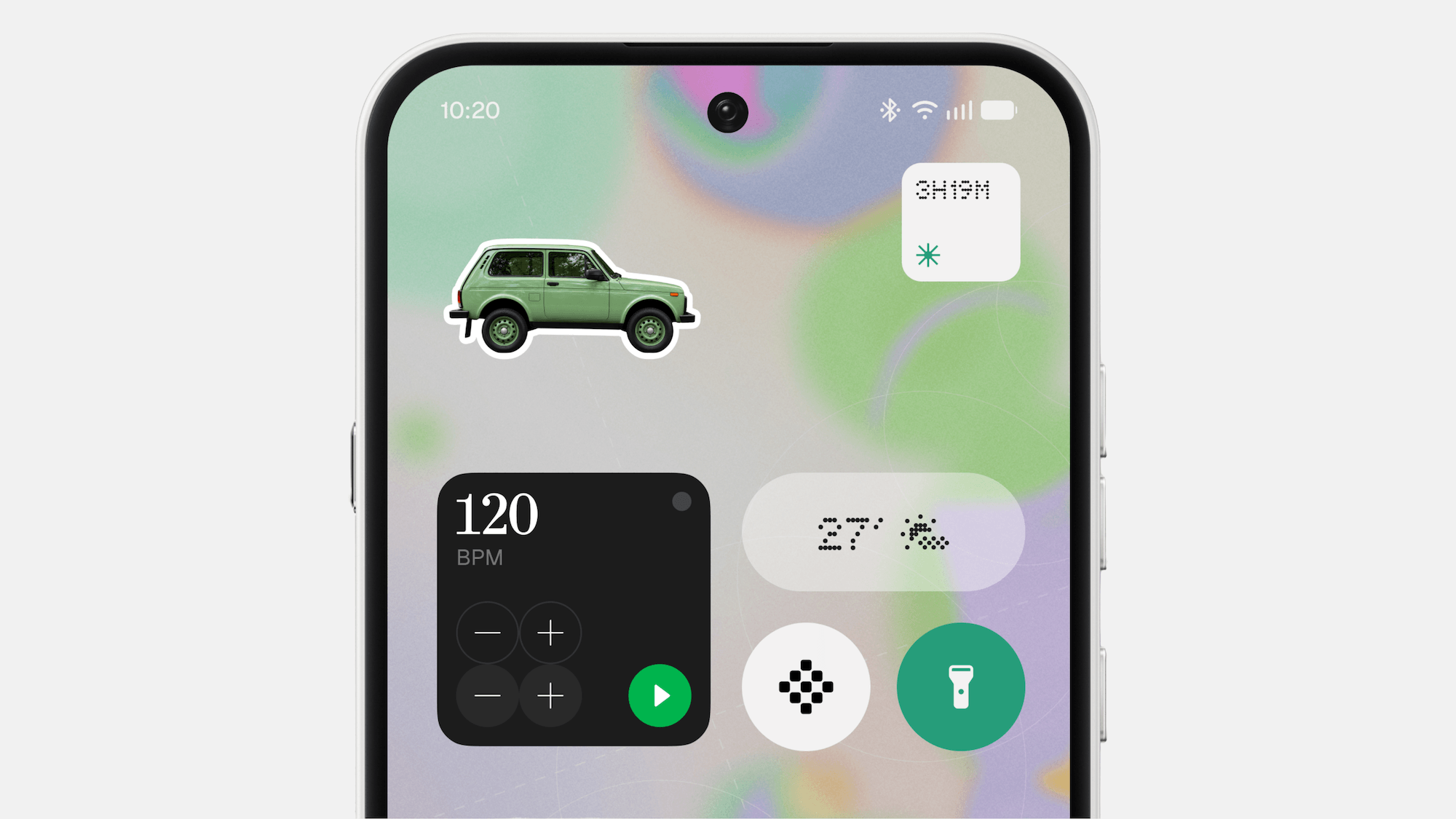
*Coming with the general release
🏠 A new theme introduces transparent details across widgets and Search to add depth and layering, with the same material language extending across first-party experiences such as Gallery.
App icons receive subtle colour tints based on your wallpaper. Widgets can use adaptive colour alongside transparent details, while 1×1 Quick Settings widgets use colours drawn more prominently from your wallpaper.
Change your wallpaper and these elements update with it, helping the home screen feel more connected to the background you’ve chosen.
The redesigned home screen will be available as an additional theme alongside the existing Nothing OS style rather than replacing it, so you can choose which direction works best for you.
Lock screen personalisation
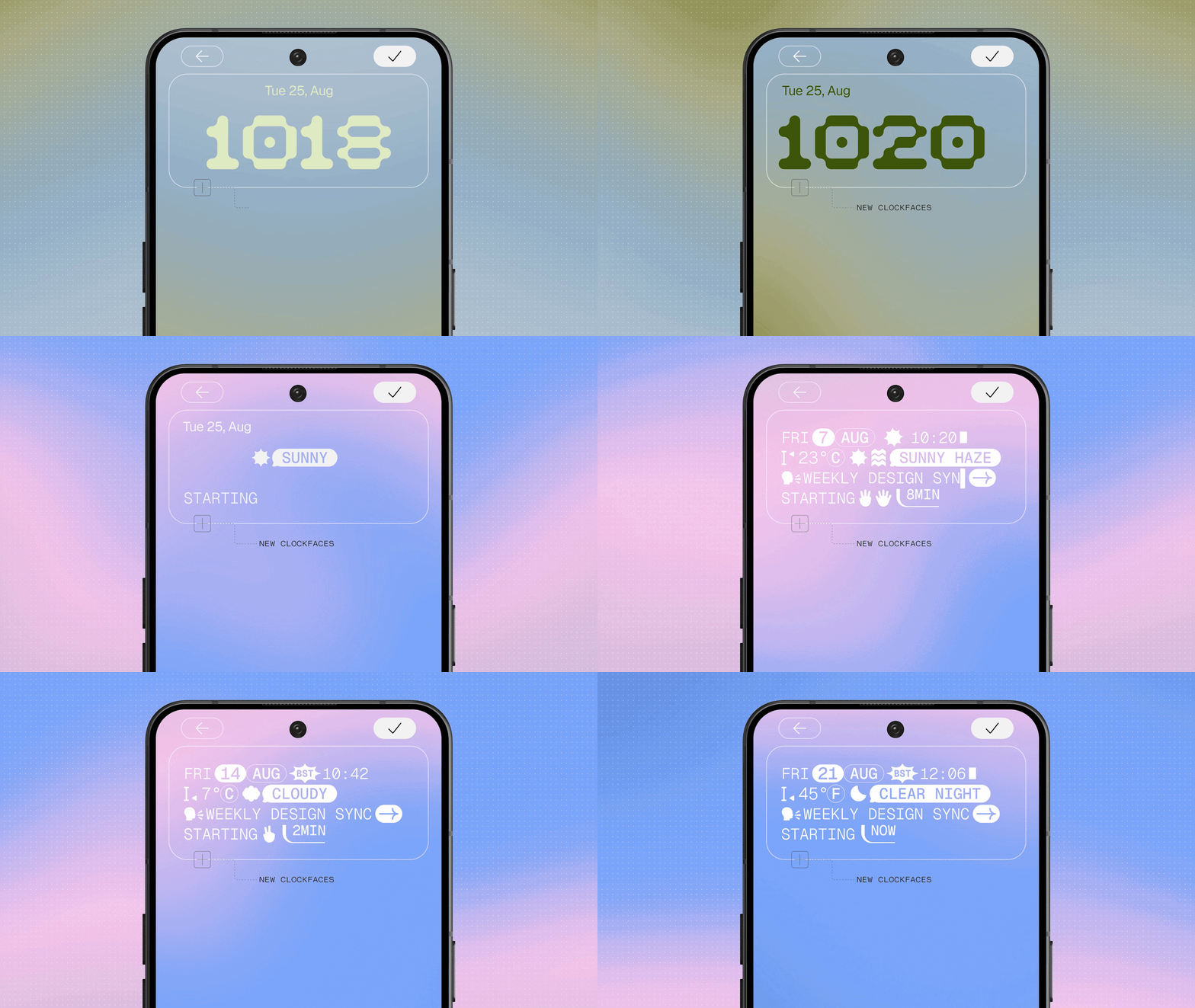
🔒 The lock screen gets two new clock faces and more colour options.
Gooey offers a bold, playful look with fluid forms and stronger personality.
Micrographics takes inspiration from the graphic language of our hardware, bringing the things you need throughout the day into one glanceable clock face. Date, time, weather and upcoming meetings are brought together through a distinctive, mechanical-inspired typographic style.
You can also choose clock face colours from your wallpaper, helping the lock screen feel more connected to the image behind it.
Depth wallpaper improvements
🌤️ Depth Effect wallpaper gives you more control over composition, letting you reposition and scale the image around the clock and other lock screen information. If the image doesn’t fill the available area, blur and translucent effects extend it around the edges without leaving awkward gaps.
Easier home screen editing
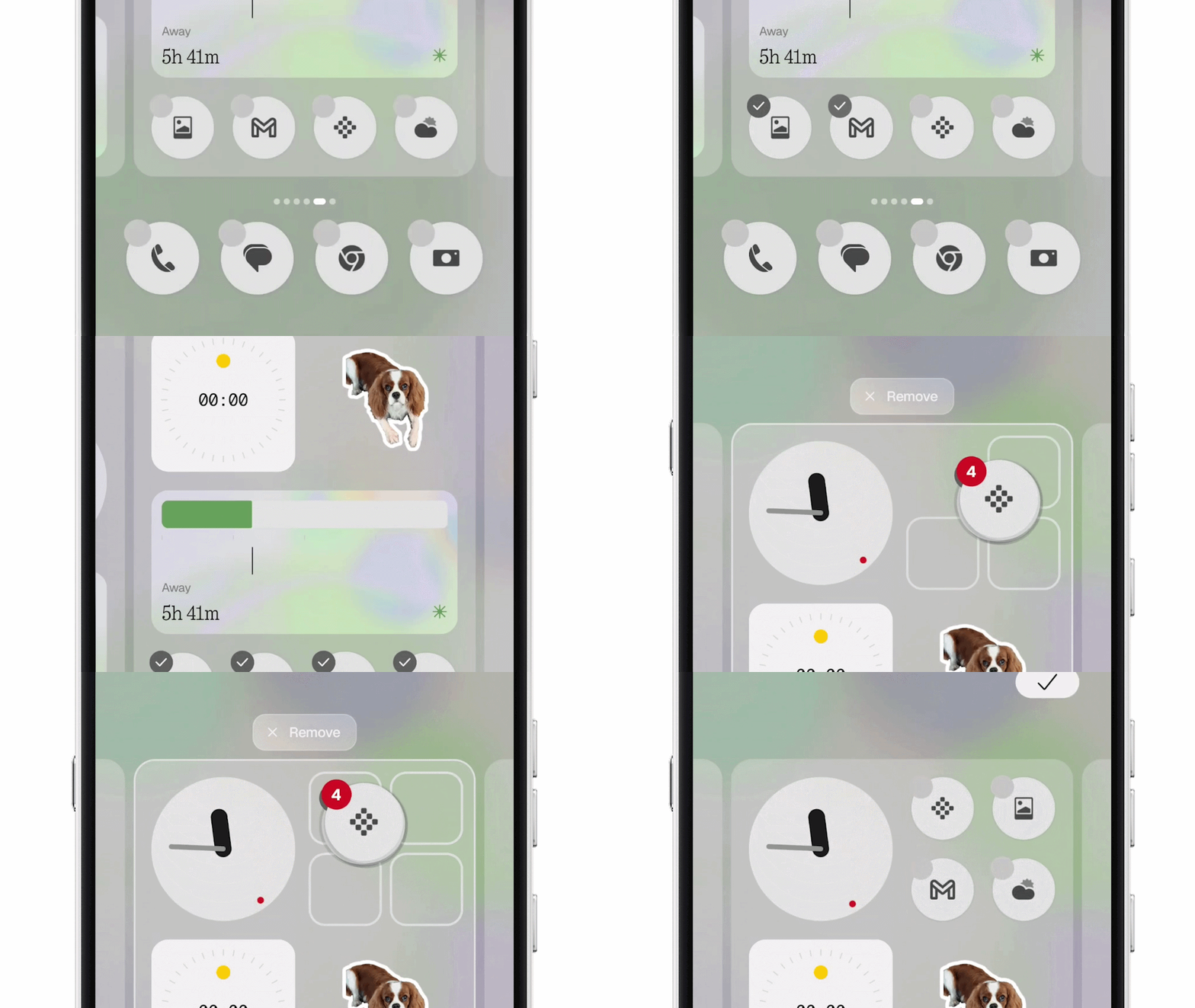
✏️ Home screen batch editing makes larger layout changes much quicker.
Instead of moving every icon or widget one by one, you can select multiple items and move them together, including across different home screen pages.
Away Time widget
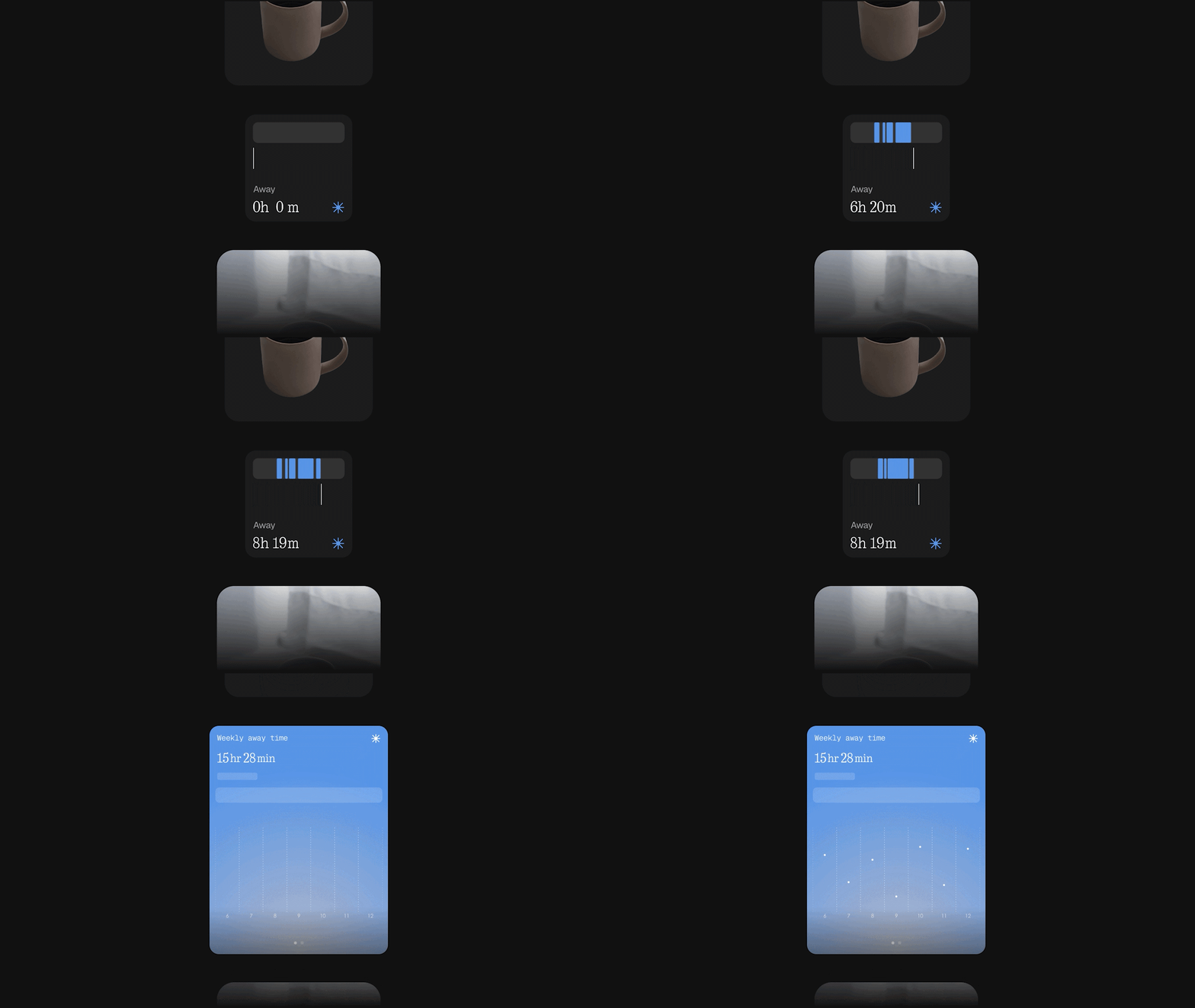
🌳 Away Time tracks the periods when you put your phone down, helping you observe how your time away from the screen changes over time.
Rather than setting limits or blocking apps, the widget lets you see patterns in your own behaviour, such as your longest breaks and how often you step away, giving you a different perspective on your relationship with your phone.
Collector widget
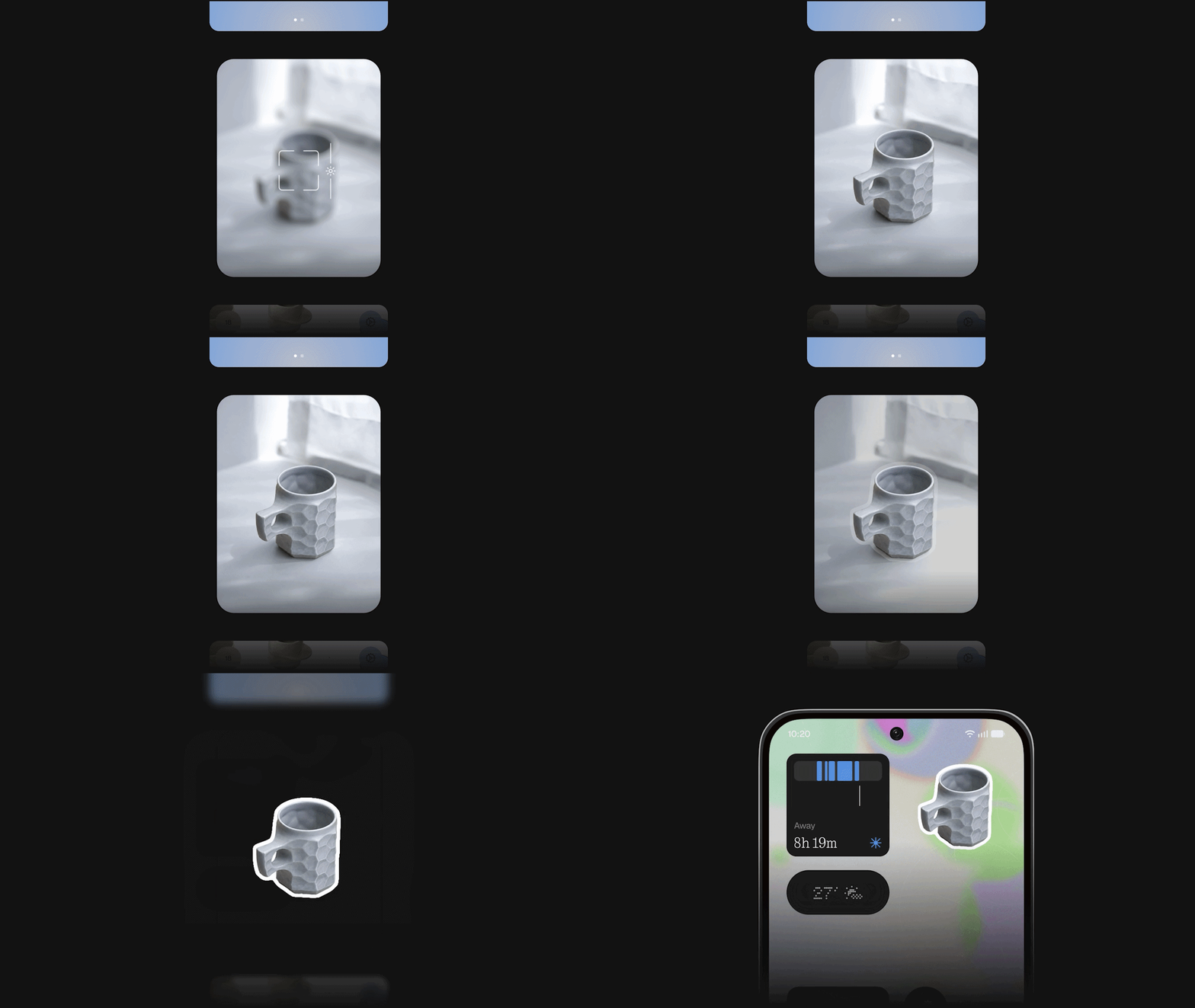
😺 Collector is a playful way to turn things you like into visual collections.
Capture something with your camera or choose a photo from Gallery, then keep, organise and display those items on your home screen and lock screen.
Coffee, sneakers, models, game consoles, bikes, cakes or anything else you want to keep together can become part of your own collection rather than another image disappearing into your photo library.
Dedicated Glyph app
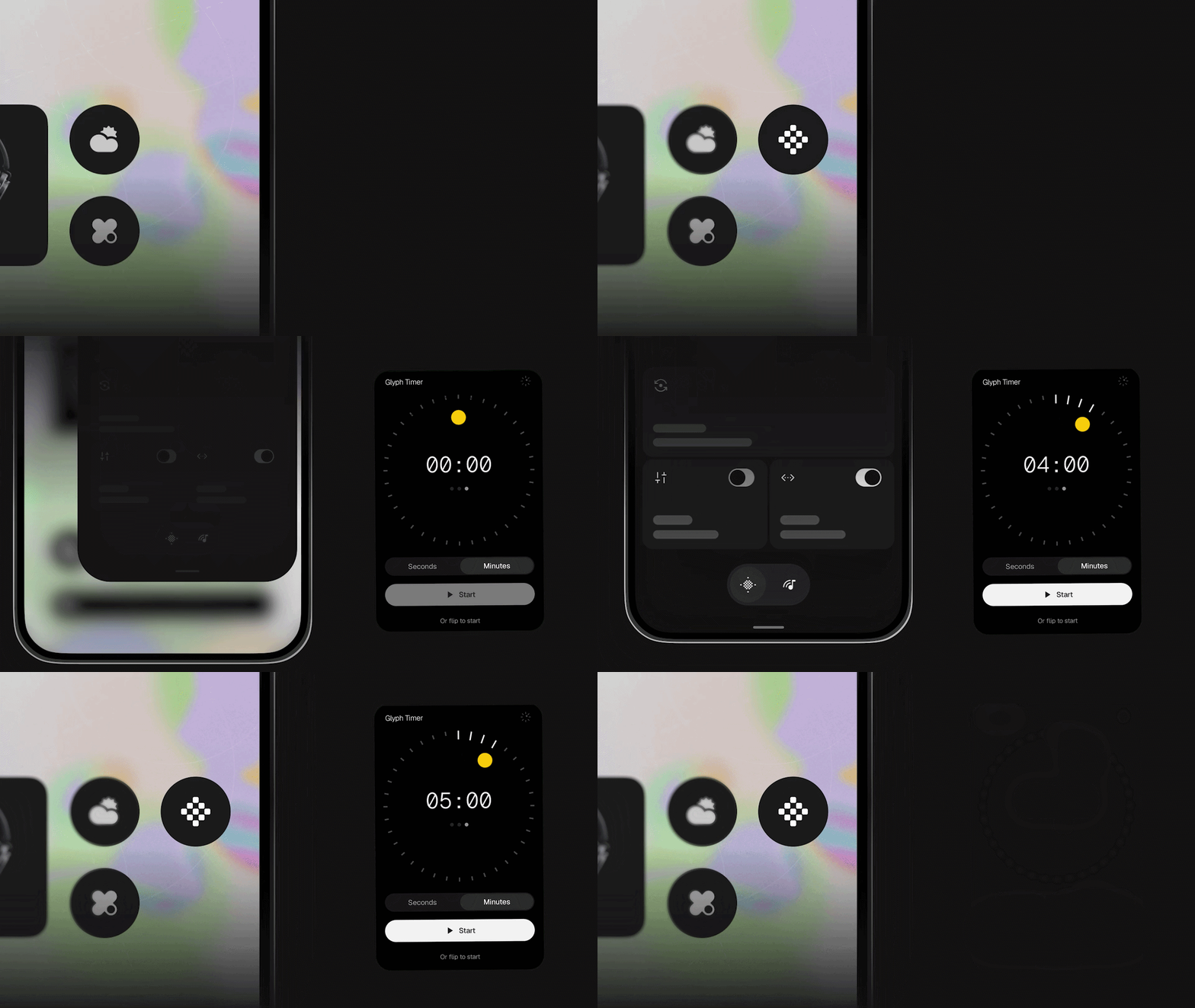
👾 The Glyph Interface now has its own dedicated app.
Supported Glyph features, sounds, ringtones and schedules are brought together in one place rather than being spread across different parts of Settings, giving you a clearer place to discover, manage and customise the experience.
Glyph Timer widget
⏲ Glyph Timer can now be started directly from your home screen using a new widget.
Once the timer begins, the Glyph on the back of your phone visually shows the remaining time, so you can keep track of a countdown without repeatedly turning on the display.
—
Faster and smoother
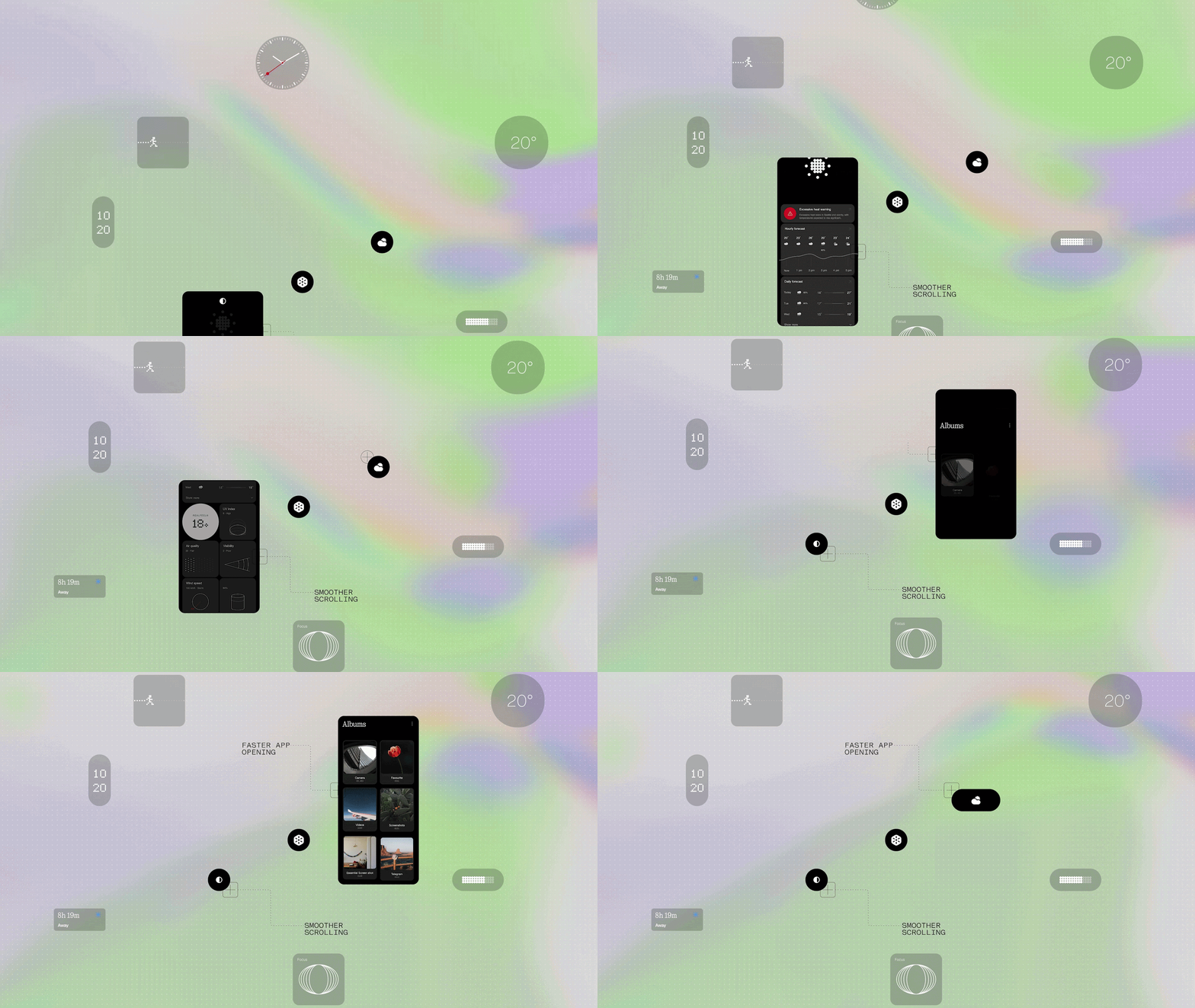
⚡️ Nothing OS 5.0 improves the interactions you repeat every day, including app launches, scrolling, touch response, multitasking and background app behaviour.
Smarter background management gives more resources to the app you’re actively using while helping frequently used apps stay ready in the background. That means fewer unnecessary reloads and a more responsive experience as you move between things.
More natural animations
Supported animations now respond when you reverse direction midway through an interaction.
Start opening something and move back, for example, and the animation follows your gesture instead of finishing the original movement first. This behaviour extends across apps, folders, widgets, multitasking, shortcuts and status bar icons.
These are interactions you repeat constantly, so making them respond more directly to your touch helps the whole system feel more fluid.
Faster Bluetooth controls
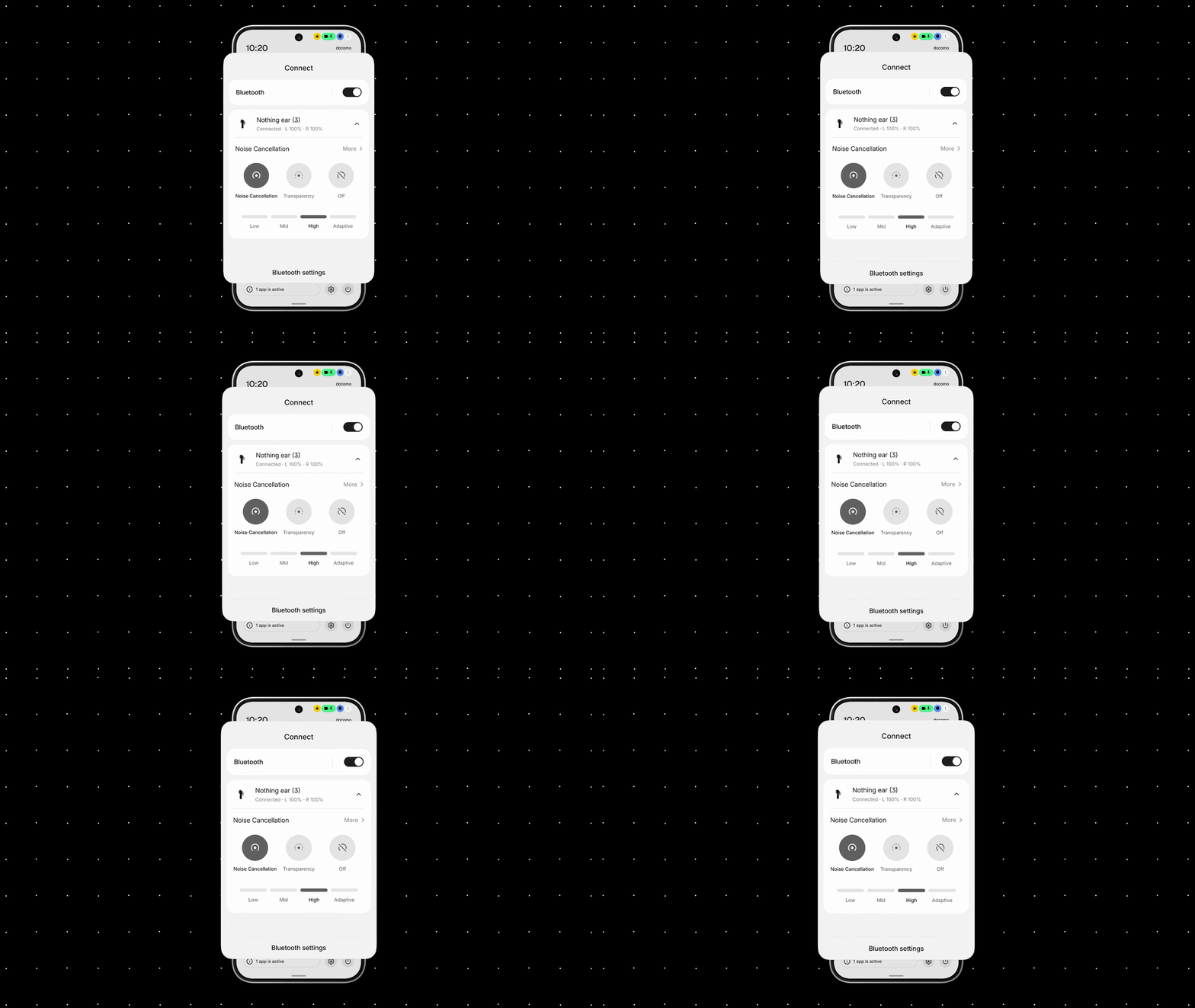
Bluetooth controls have been redesigned in Quick Settings, making nearby devices easier to find and letting you connect or disconnect supported devices with a single tap. That means common actions like reconnecting earbuds or disconnecting a speaker can happen without opening the full Bluetooth Settings page.
—
Essential AI tools
Nothing OS 5.0 brings updates across Essential Voice, Essential Space and Essential Apps, helping you capture thoughts, organise what you save and create useful tools directly from your phone.
Essential Voice
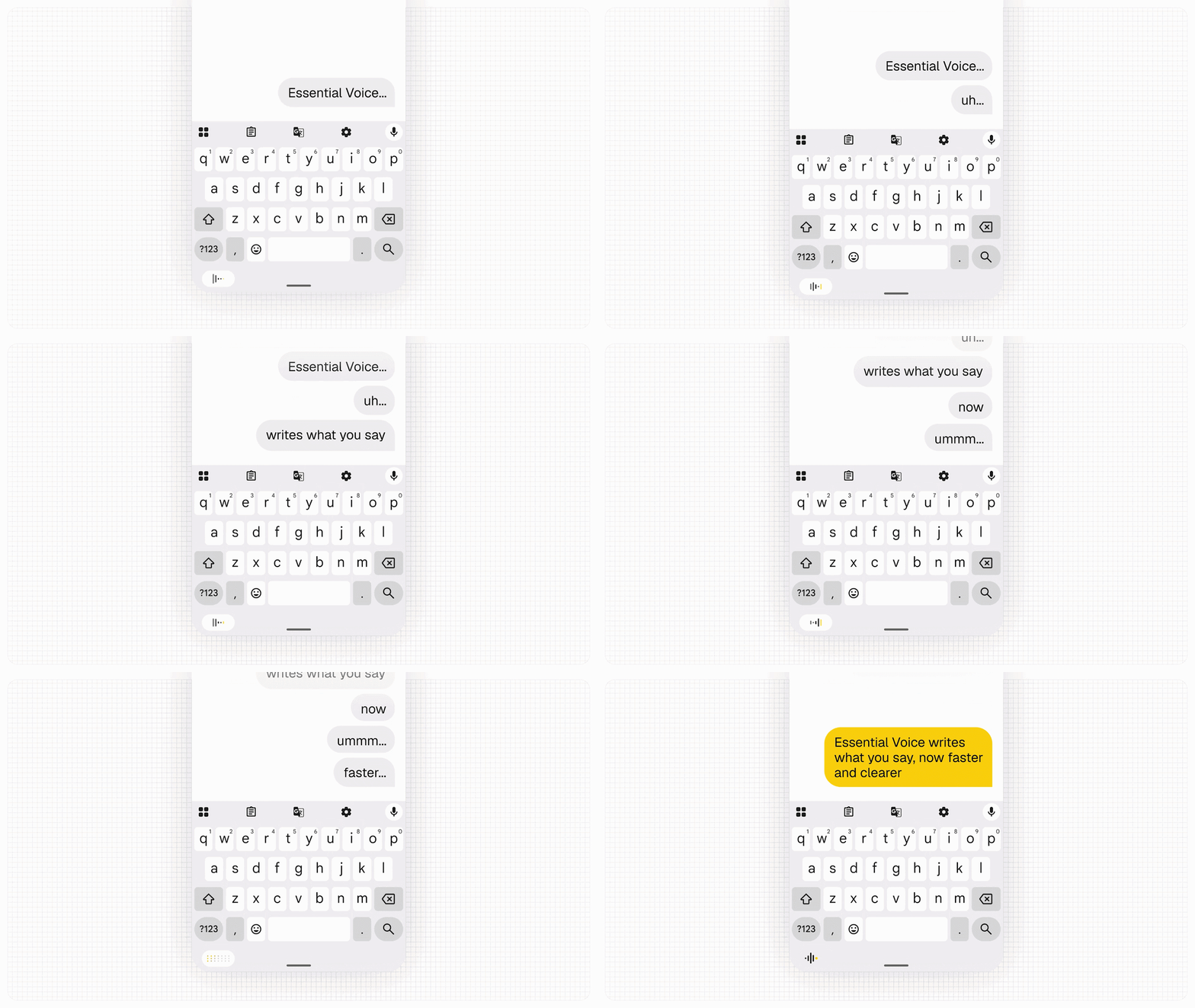
🗣️ Essential Voice is now faster and delivers cleaner, better-formatted transcriptions.
It better understands when speech should remain a paragraph and when it should become a list, helping separate tasks, requirements or ideas into clearer points while preserving what you said.
Real-time transcription also shows words as you speak, so you can see the transcription taking shape rather than waiting until the recording is complete. Coming later this year, real-time translation will make it easier to follow and understand conversations across languages as they happen.
And with Ear (3), you can now capture audio directly through Super Mic using the earbud case, giving you another way to quickly record something without holding your phone.
Essential Space
🔭 Essential Space makes capturing and organising information easier.
Using the Essential Key to capture content is now simpler and more consistent, with the interaction flow refined across the experience.
Smart Collections
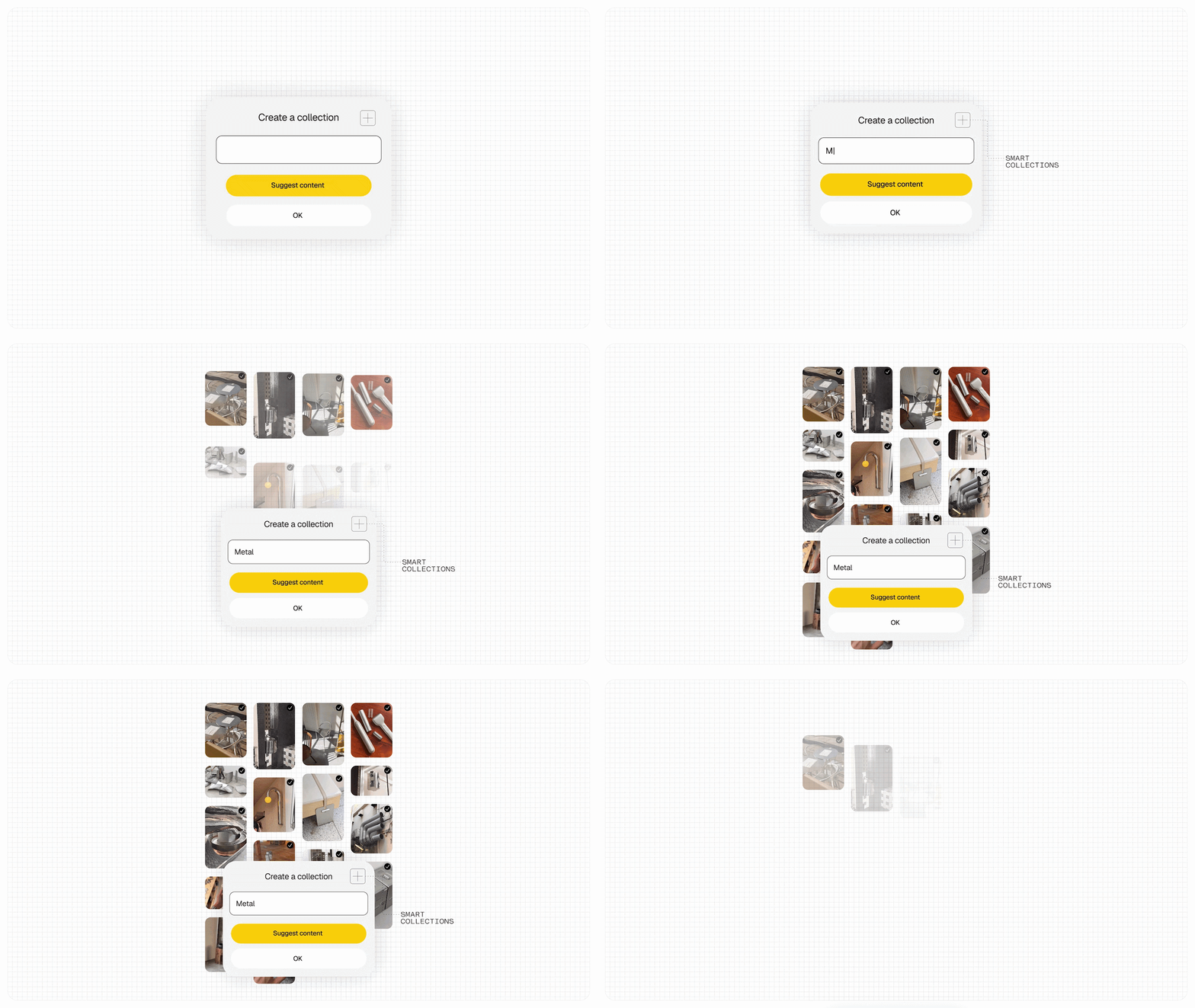
📚 Smart Collections help organise scattered captures with less manual work.
After you create and name a new collection, Essential Space can look through your existing captures and recommend relevant content to add.
For collections you already have, it can suggest related content as you continue capturing new things.
And when Essential Space recognises a common topic across several captures, it can proactively suggest creating a new collection for them.
Model Context Protocol support
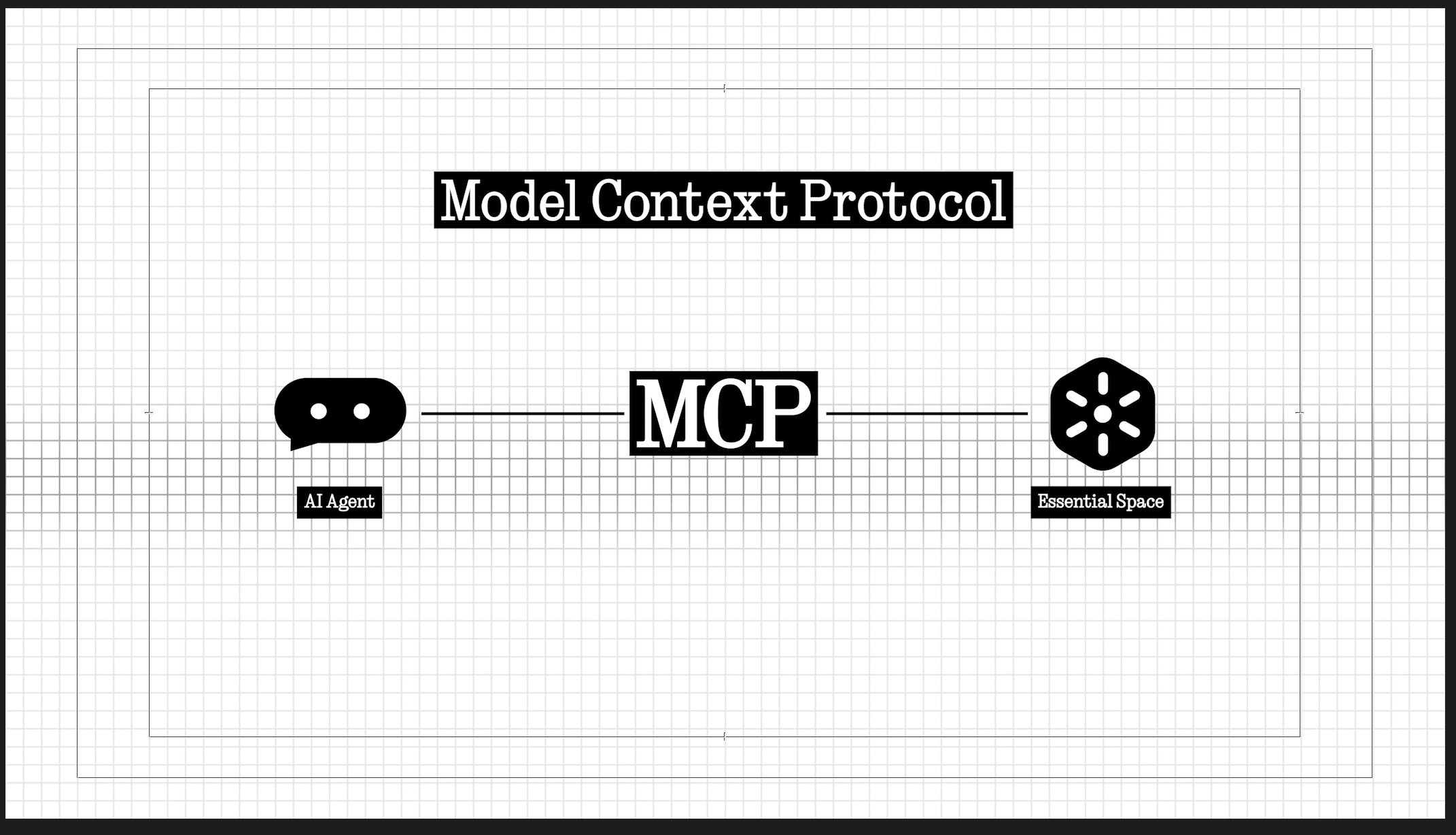
Essential Space also introduces Model Context Protocol, or MCP, allowing compatible AI platforms to search and read selected information from your Essential Space. This means information you’ve already saved there can be accessed by supported AI tools without you having to find the capture and copy and paste it across.
For the initial release, MCP support is read-only, so supported tools cannot write to or modify your Essential Space data. MCP support for Essential Space will roll out through Google Play in October.
Essential Apps on your phone
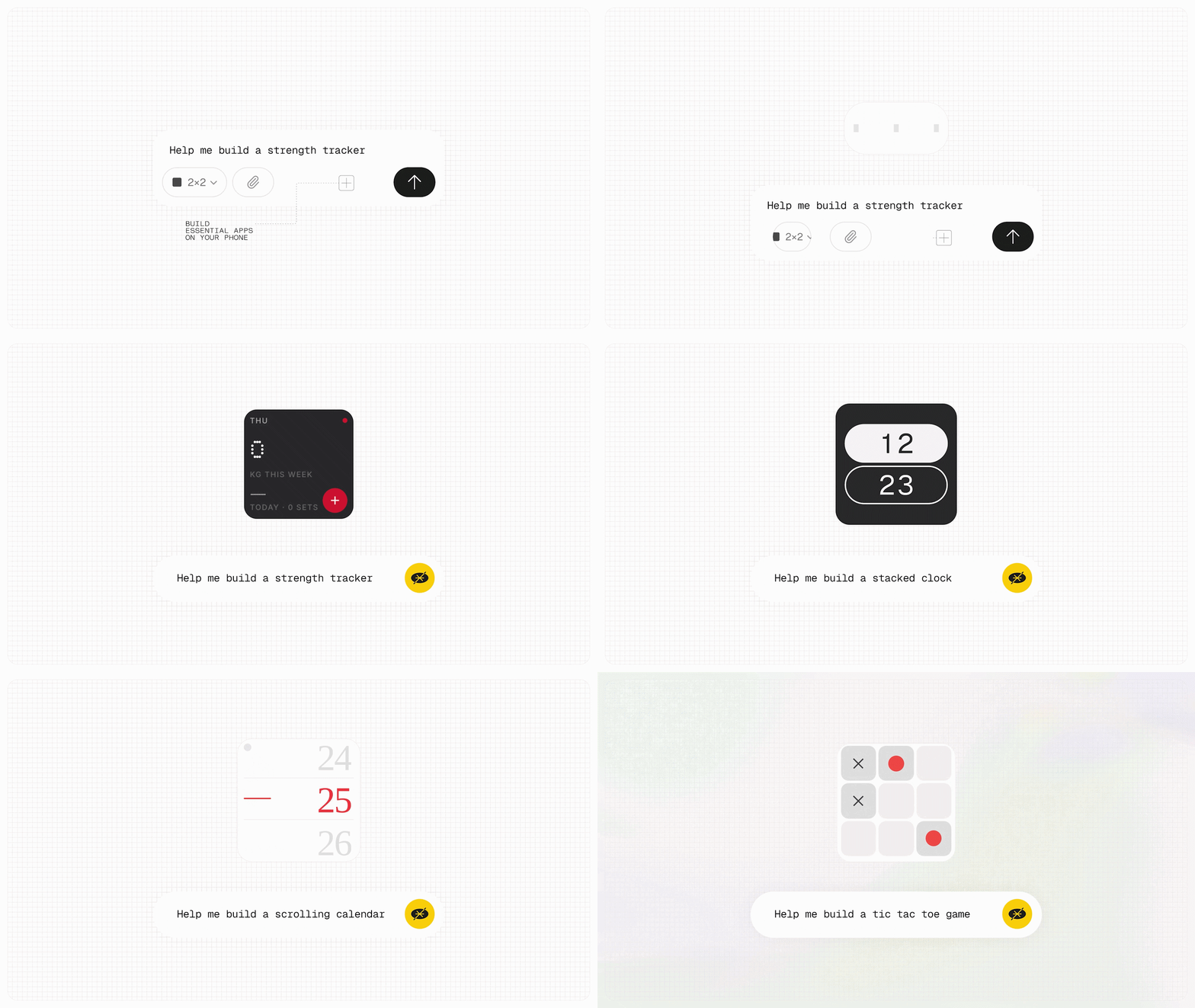
Until now, Essential Apps could run on your Nothing phone, but building them happened through the web. With Nothing OS 5.0, Essential Apps Builder moves onto your phone as an app.
Describe the tool you need in natural language, preview what’s created, refine it and deploy it directly to your home screen without writing code.
Want a widget built around something specific to your routine, a small tool for a recurring task or a different way to organise information? You can describe what you need, build it and start using it on the same device.
Essential Apps Builder remains in beta, with access gradually expanding to more users.
—
More control across the system
Nothing OS 5.0 is built on Android 17, bringing the latest Android platform improvements into the Nothing experience.
Separate Notifications and Quick Settings

You can now choose to separate Notifications and Quick Settings into dedicated panels.
With split mode enabled, swipe down from the left to open Notifications and from the right to open Quick Settings. If you prefer the existing combined layout, you can continue using it.
Enhanced Quick Share
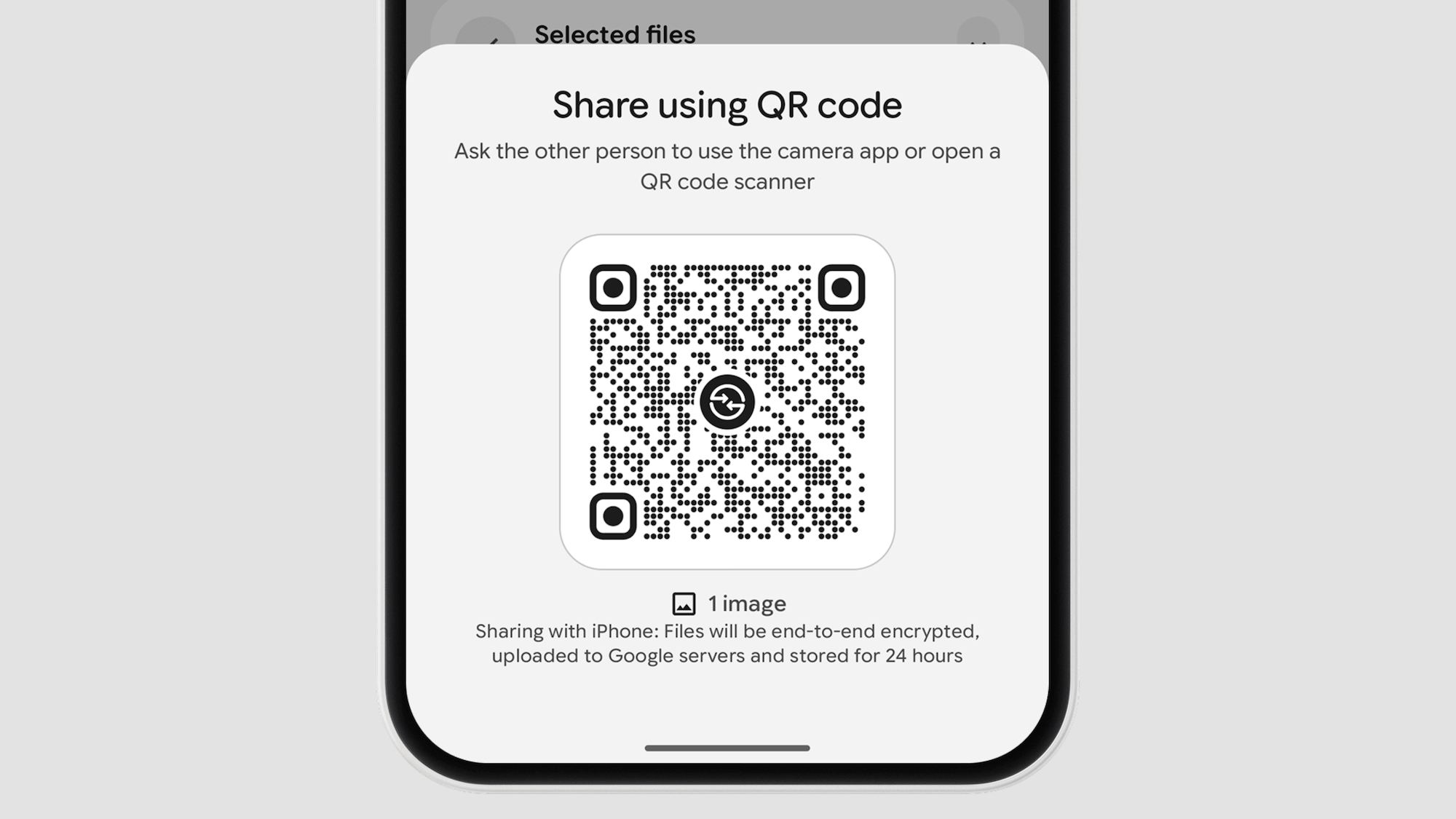
📨 Enhanced Quick Share makes it easier to share files across different ecosystems.
Generate a QR code for whatever you’re sharing. The other person can scan it with their camera, whether they’re using an iPhone or another Android phone, and a secure web link will open in their browser to download the files. No extra app needed.
Improved screen recording
🔴 Screen recording now uses a floating action capsule, keeping recording controls easy to reach while you’re using your phone instead of having them disappear into another part of the interface.
Clearer privacy indicators

The status bar introduces a new three-colour indicator system to make device activity easier to understand at a glance.
🟢 Green highlights sensitive access, 🔵 blue indicates location sharing and 🟡 yellow shows AI data processing, giving you a quick visual cue for what your phone is doing.
Location permission updates
Updated location permission prompts make it clearer when an app requests your location and what level of access you’re granting, so you can better understand what you’re agreeing to before you continue.
Live Updates in the status bar
Compatible apps can show ongoing updates as capsules directly in the status bar, so you can keep track of active information without repeatedly reopening the app. Up to two Live Updates can appear at once, and tapping one expands it into the corresponding notification.
Noto 3D Emoji
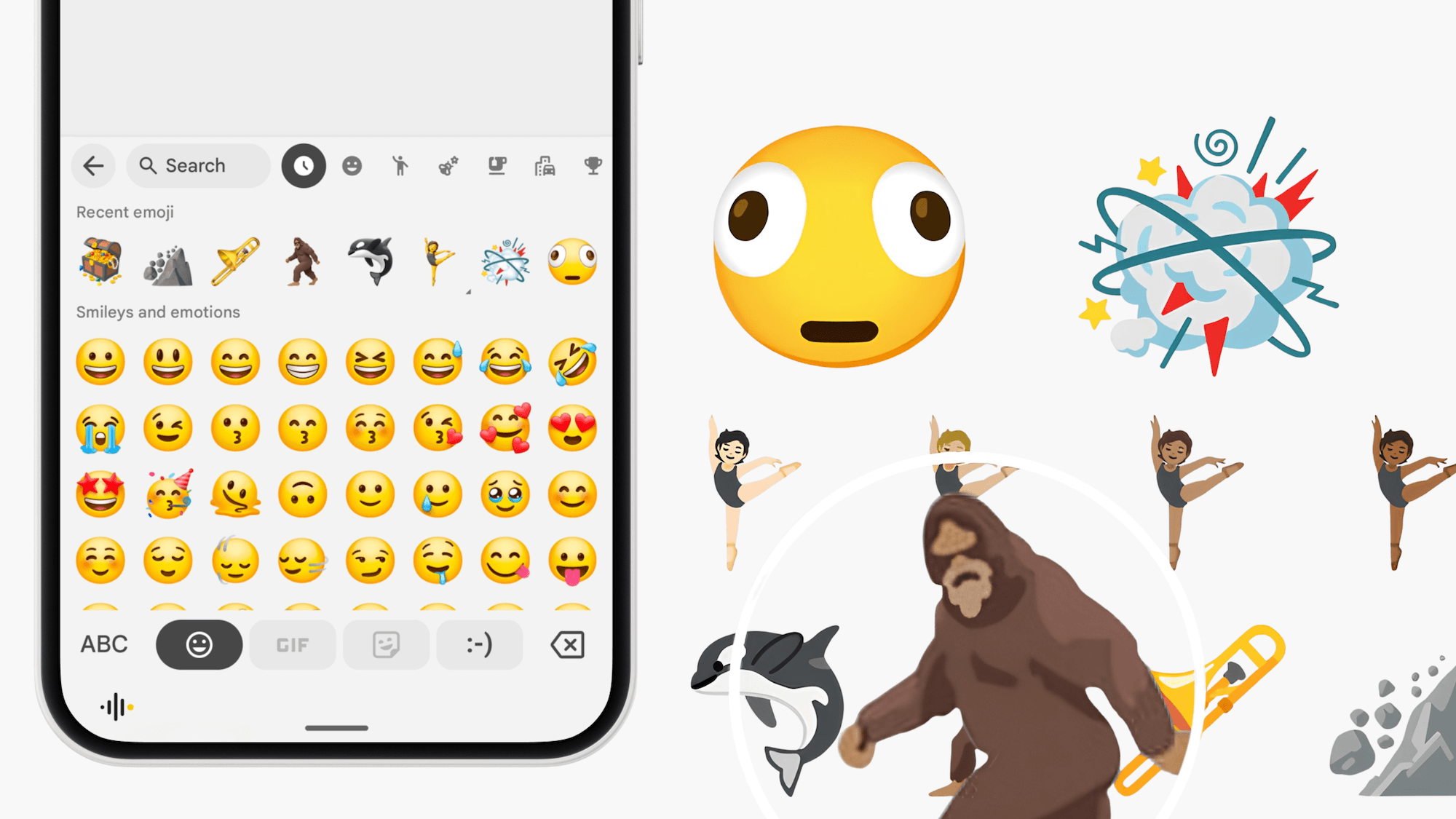
Android 17 introduces Noto 3D Emoji, bringing a more dimensional and expressive look to supported emoji.
The update also includes the latest Unicode additions, including Distorted Face, Fight Cloud, Hairy Creature, Ballet Dancer, Landslide, Treasure Chest, Orca and Trombone.
Expanded Dark Theme
🌒 Expanded Dark Theme brings a dark appearance to more apps, including apps that don’t provide their own complete dark theme.
You can control the treatment on an app-by-app basis, so you don’t have to force the same behaviour across everything on your phone.
Settings > Display > Dark theme > Expanded.
Assistant volume
🔊 Digital assistants now have their own volume control.
You can adjust assistant responses separately from your general media volume, so turning down a video or song doesn’t also leave your assistant too quiet.
Settings > Sound and vibration.
Enhanced HDR brightness
☀️ Enhanced HDR Brightness lets you make HDR photos and videos brighter and more vivid without increasing the brightness of the entire interface, so highlights can stand out without making everything else on screen unnecessarily bright.
Settings > Display > Enhanced HDR brightness.
Updated Recents
The Recents screen introduces a pill-shaped menu at the top of each app card, making actions such as Split screen and App info easier to find than the previous icon-tap interaction.
and more..
—
Open Beta starts tomorrow
📆 Nothing OS 5.0 Open Beta starts tomorrow, 26 August at 11:00 BST, beginning with Phone (3). More eligible devices will join over the coming months. See the current rollout timeline below.
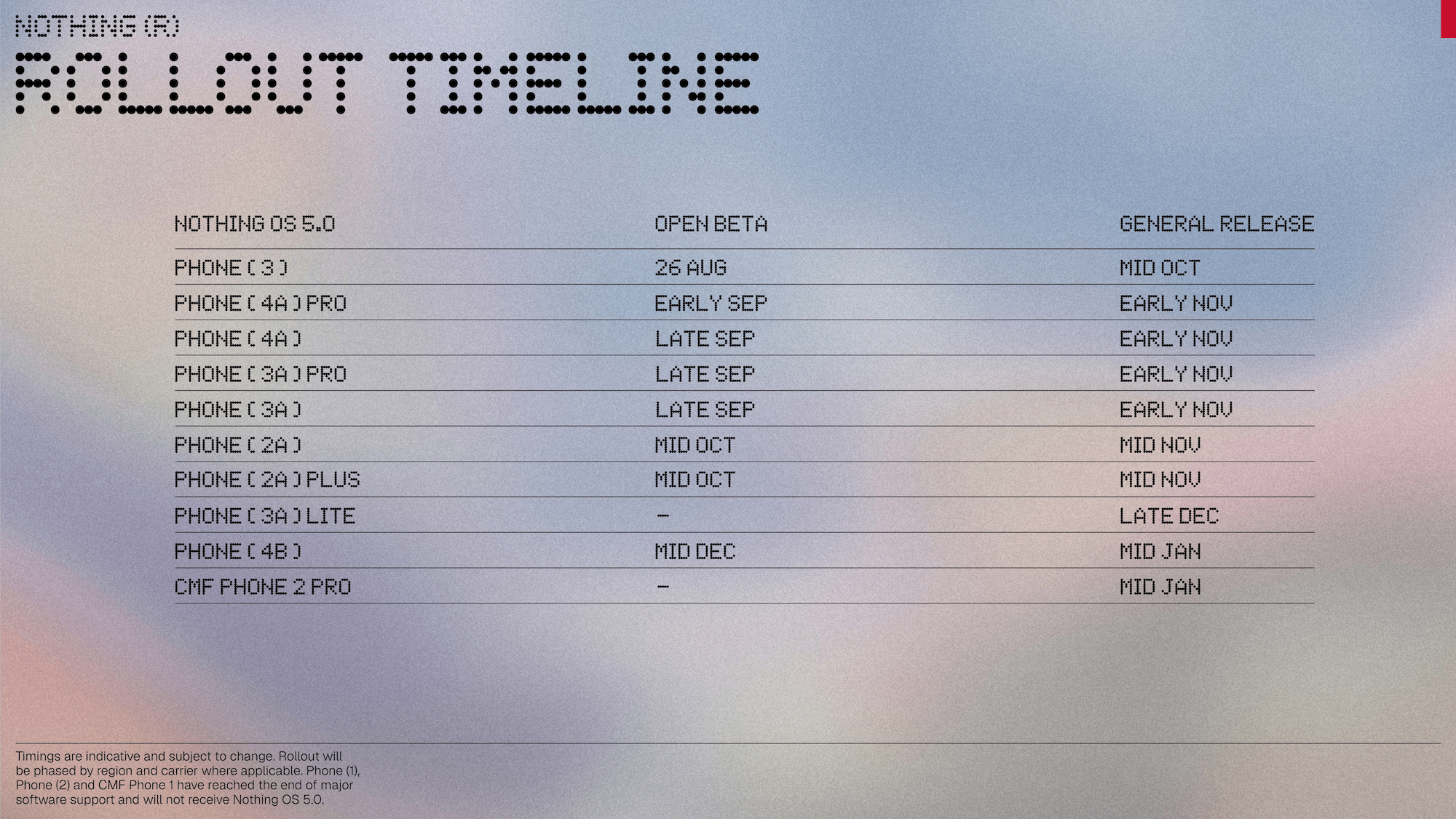
These timings reflect our current plan and may change as development and testing progress.
The redesigned Launcher and Micrographics clock face are still under development and won’t be available in the Open Beta. Both will arrive with the general release, starting from October.
🚨 Come back tomorrow for everything you need to download and install the Open Beta.
We can’t wait for you to try Nothing OS 5.0 and share your feedback.
