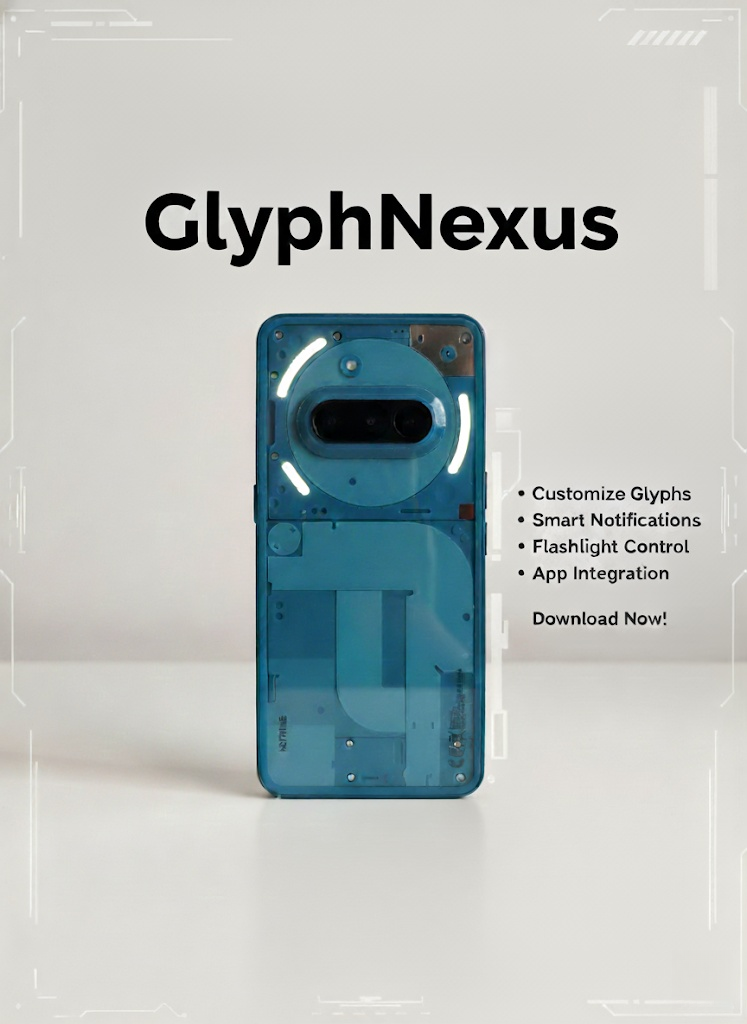
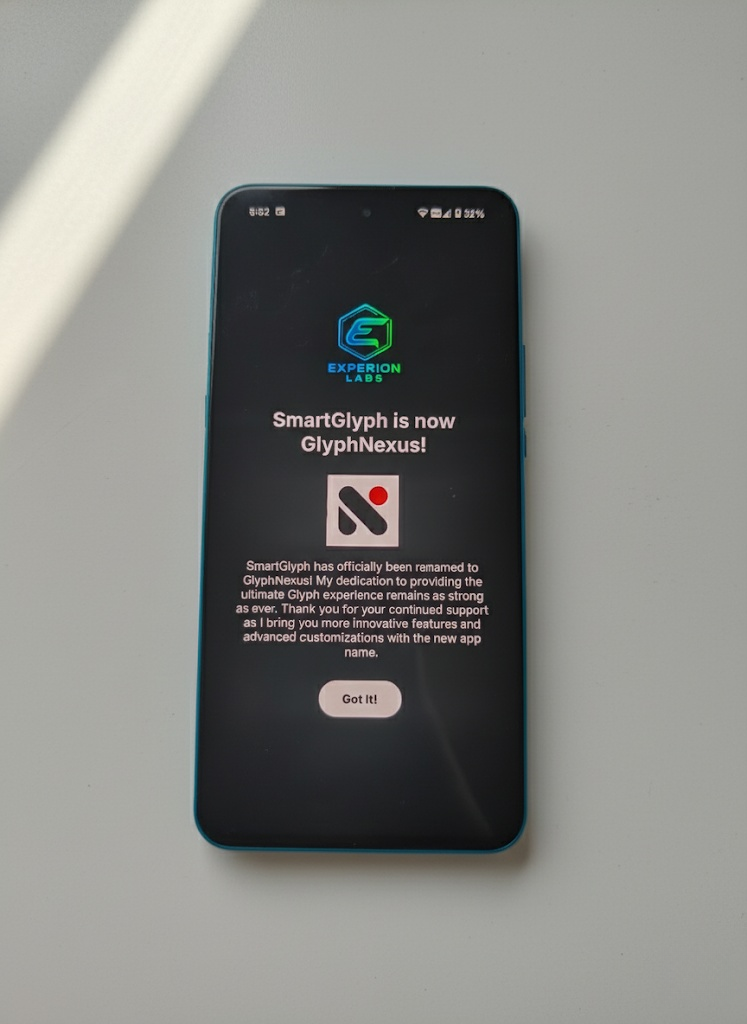
I am Vishwam, the developer of SmartGlyph. The app name was just changed to GlyphNexus if anyone missed the news but my vision remains the same and that is to add more Glyph functionalities for Nothing Phones.
How to install the app:
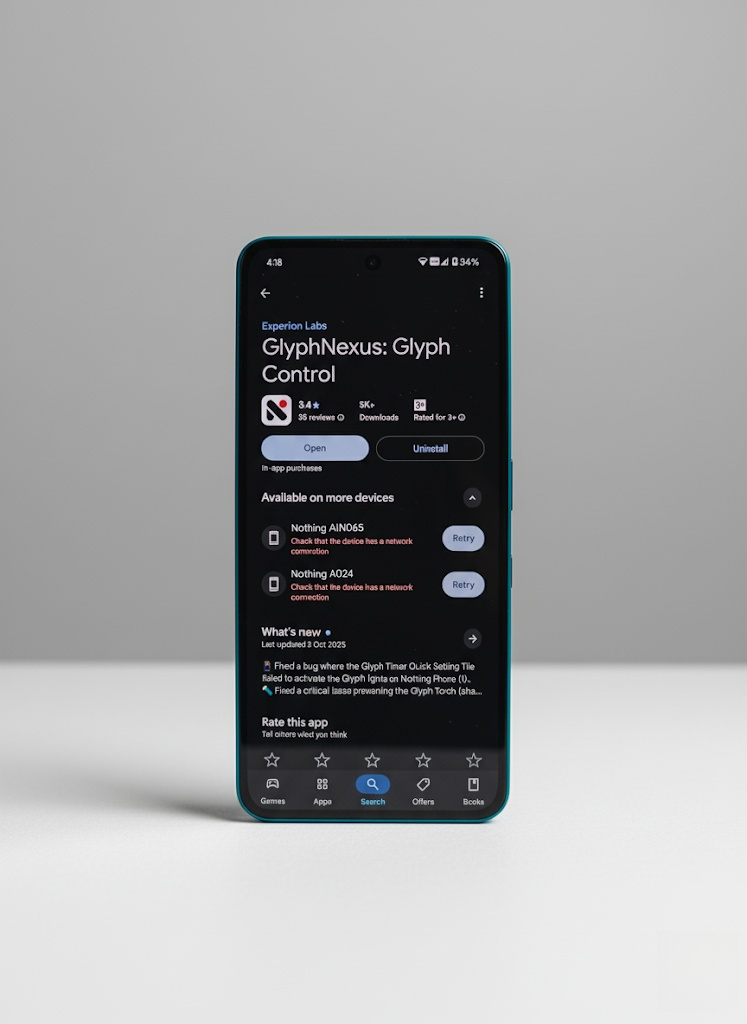
1. Head to the play store
2. Search “GlyphNexus” in the search bar and you will see “GlyphNexus: Control Glyphs” as shown in the image below
3. Install it
1. Welcome Screen:
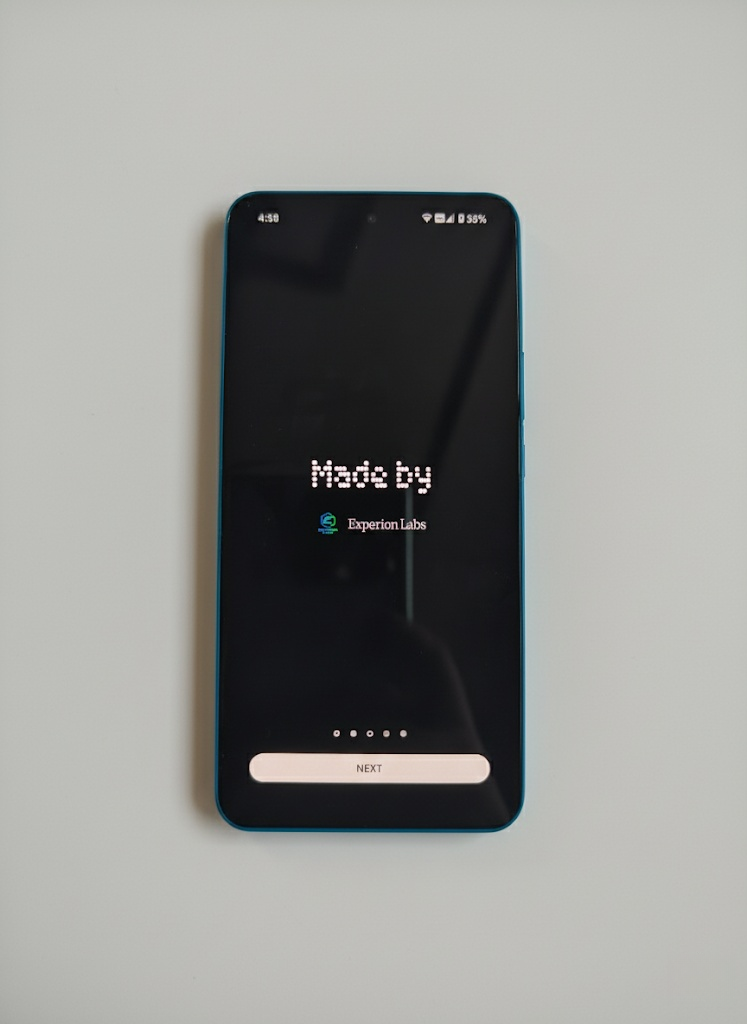
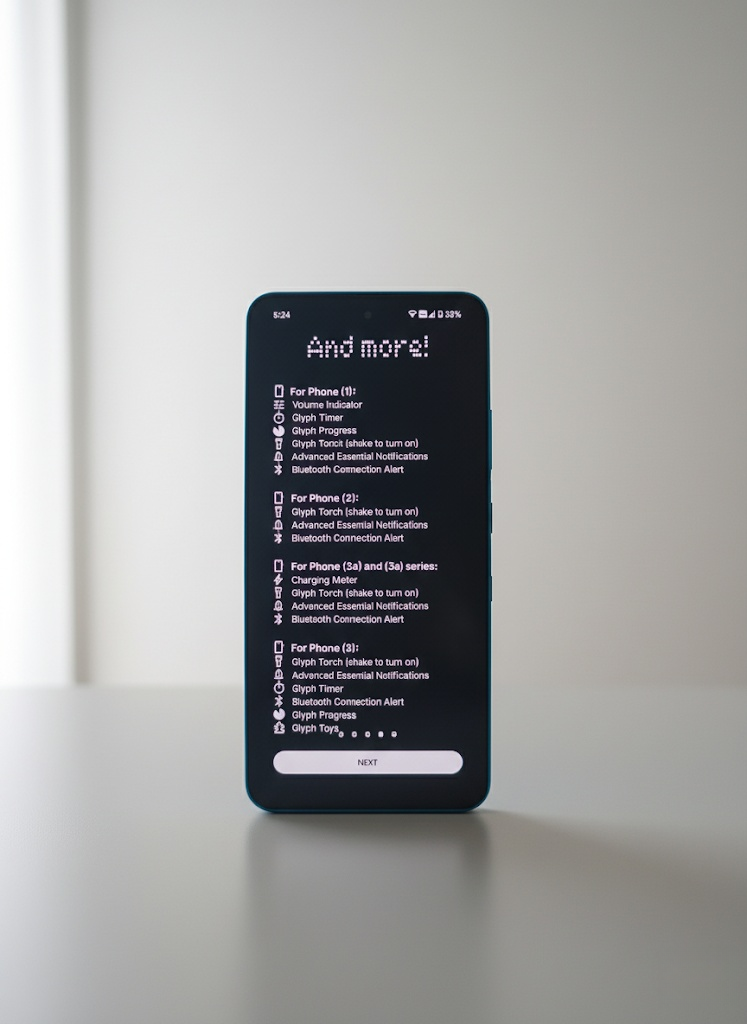
When the app is opened for the first time, an introductory screens are shown for the first time. In that, first one shows the glyph interface of the device with the app name, 2nd is show the brand name, 3rd is the vision behind the app, 4th is some extra features in the app and last one an important but optional setting.

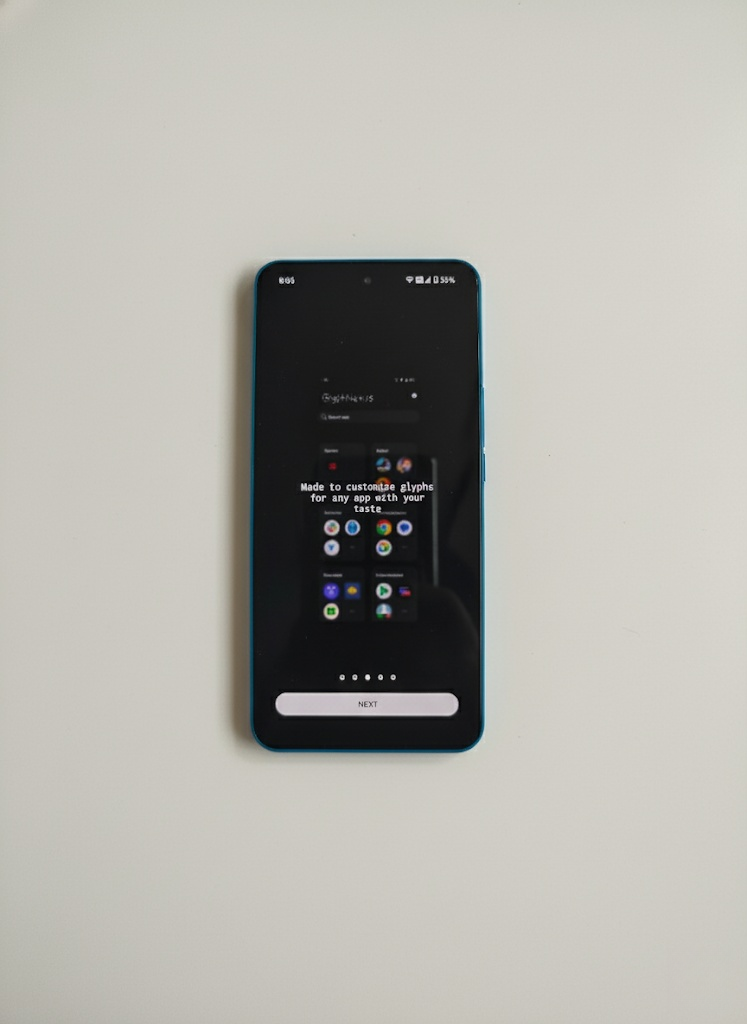

Now, before the app starts it has 1 more information and that’s regarding the app name change as shown below
2. Loading screen:
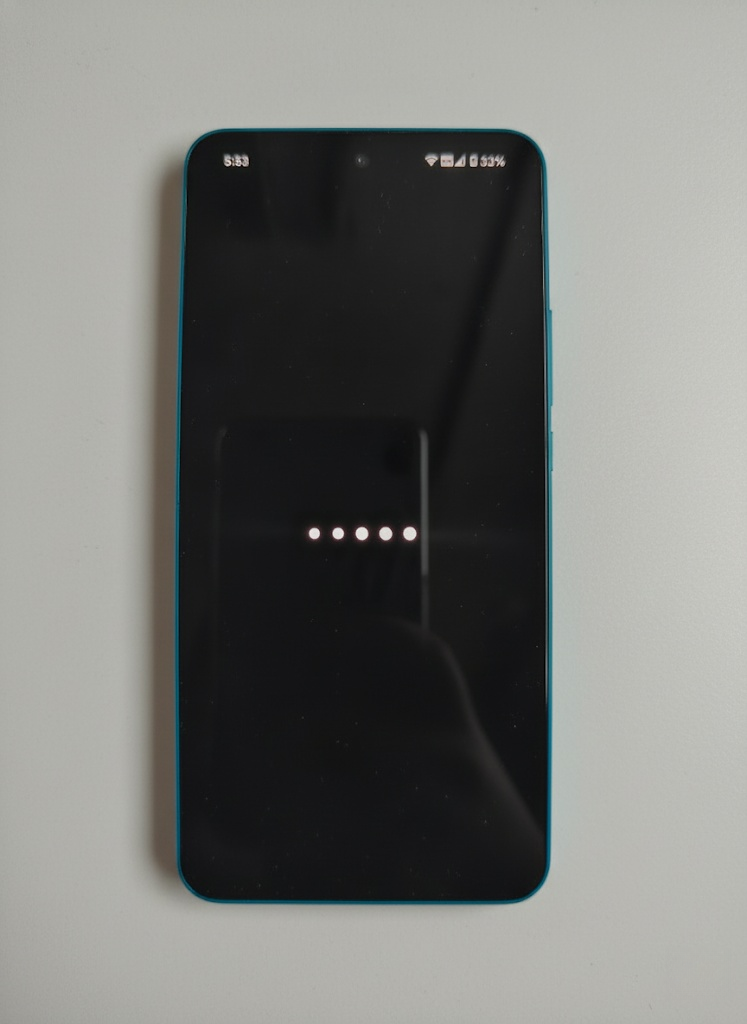
Now the loading screen is inspired by the boot animation of Nothing OS 3.0 as loading in GlyphNexus is also dotted style as shown. Typically it takes about 30-40 seconds when loading in good network conditions. It might take more time depending on the number of apps installed in the device and the network speed.
Note: Do not exit the app when it is loading. Doing so will stop loading and all the apps will not be shown. It will only show the apps it could load before exiting the app. The loading is shown below.
After it completes loading it will show the apps those are installed in the device and the apps will be separated into different categorie
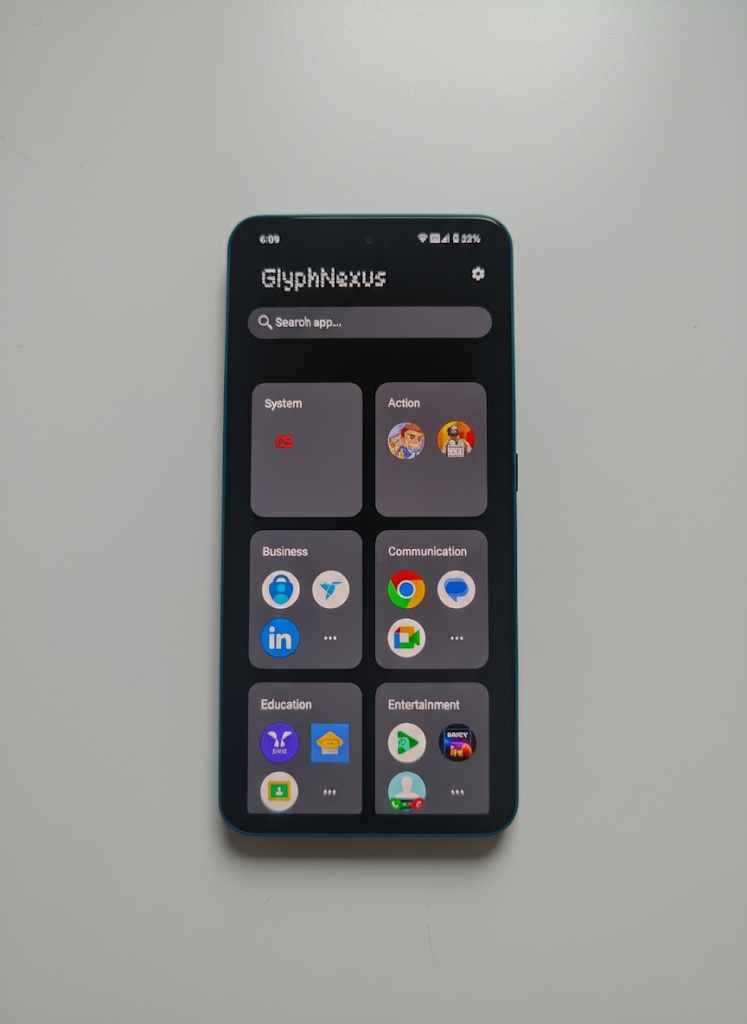
Now in this clicking on any app will use AI and show how can glyphs be used for the particular app. The AI for now has limitation that it can be used 1000 times a day only and to give everyone a fair chance I am giving 5 times per user per day for free. So to resolve this and afford paying for the AI to give unlimited times I have introduced nominal subscriptions.
Anyways so when clicking on any app it will show as below
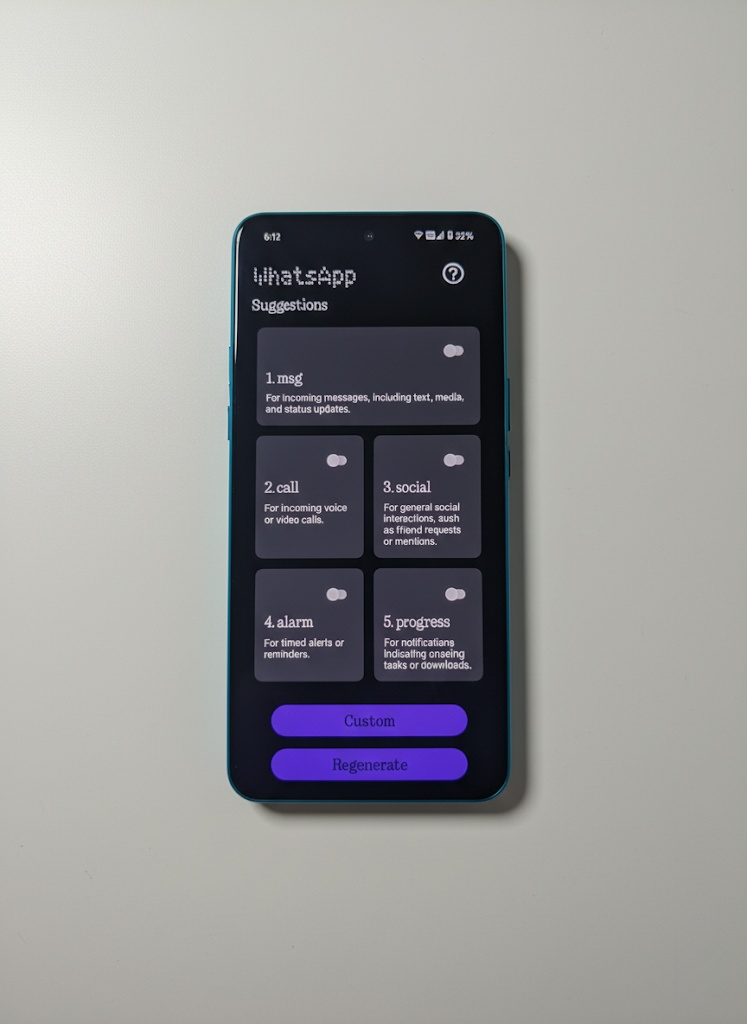
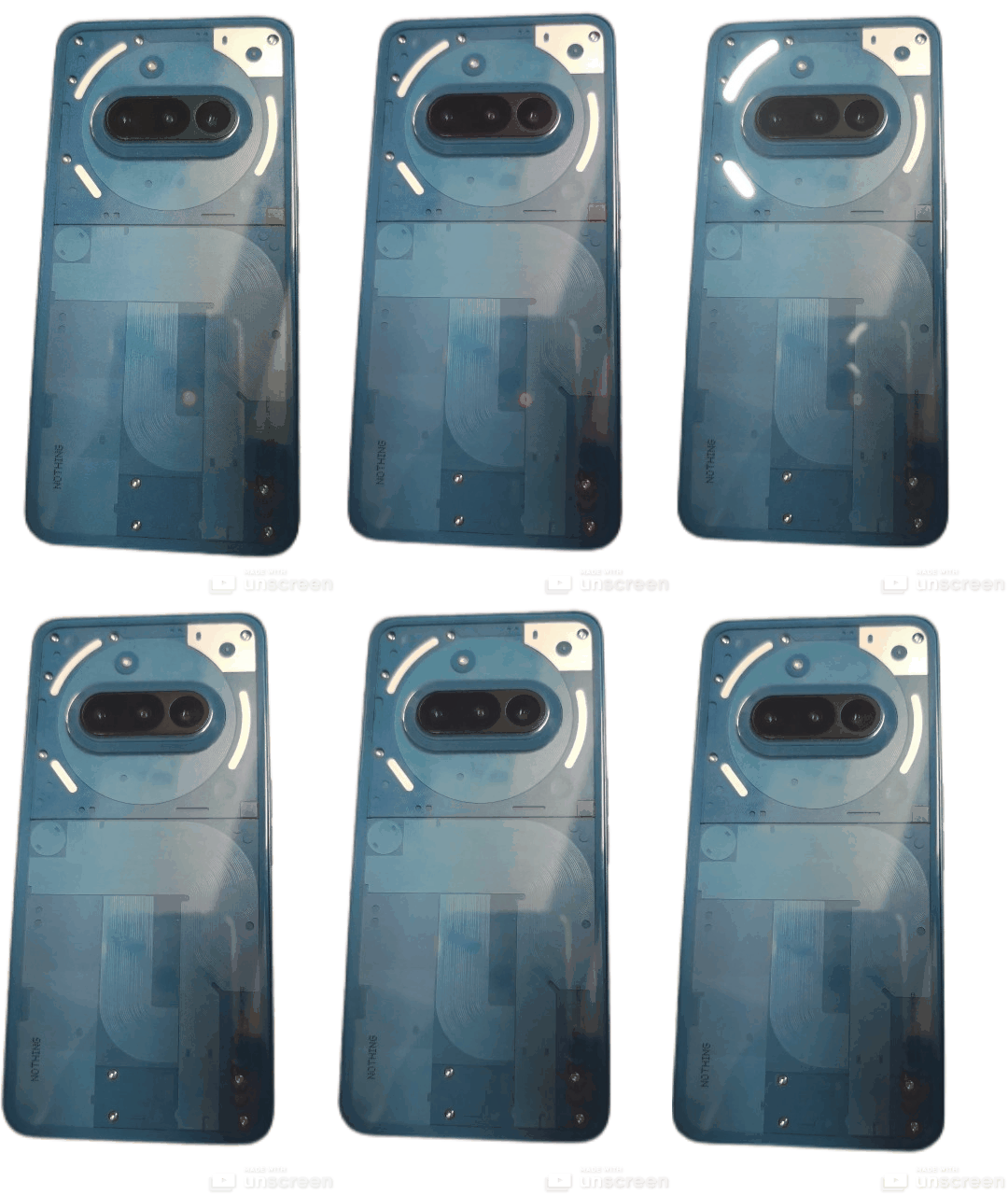
So let’s take an example in this. So if I click ‘msg’ in this WhatsApp then glyphs will react for any message in WhatsApp and similarly other things will work. Like if you select ‘social’ then glyphs will react for any reaction notifications if anyone reacts to your messages and it will react like shown below
3. OS option:
The OS option is not involved with AI and this has different features for different Nothing Phones. For example Phone (1) has Volume Indicator in OS but Phone (3a) series doesn’t have Volume Indicator. Instead that has Charging Meter which Phone (1) doesn’t have and there are some common features across all models. Phone (3a) has:
a. Glyph Torch: Shake the device to turn on the Glyph Torch
b. Charging Meter
c. Advanced Essential Notifications: Basically Essential Notifications but in this can use any glyph LED.
d. Bluetooth Connection Alert: Shows glyph alerts when bluetooth device is connected or disconnected
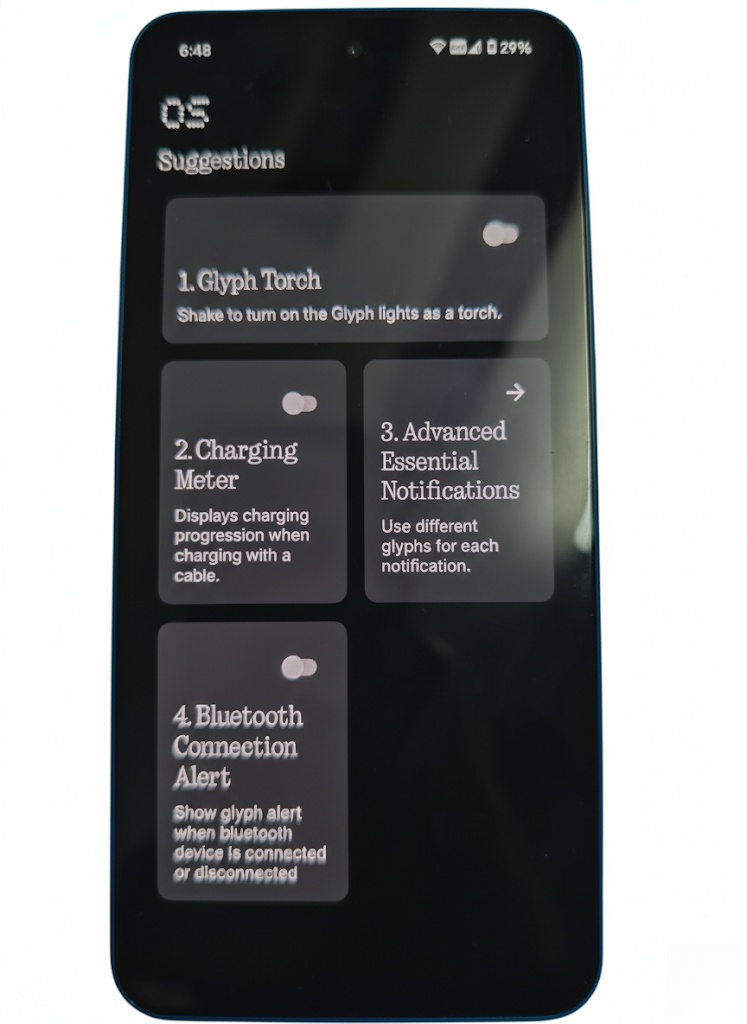
1. Glyph Torch: This is shake to turn on the glyph torch. This might be useful in emergencies as toggling that on and shaking the device turns on the glyph torch
2. Charging Meter: Unlike the Phone (1) and the Phone (2), the Phone (3a) series doesn’t have Charging meter in-built. So, I decided to make it in GlyphNexus. Plug the device and start charging the device and shake the phone to see the glyph charging progress. And this has 2 settings. First is Default so check it once and it will go off soon and shake every time to check it. And second option is Always-on so in this the progress will always stay on till the device is unplugged. Check the videos below how it works in Default setting and always on and the first one is Default
3. Advanced Essential Notifications: This is basically like Essential Notifications but unlike the in-built one in this setting any glyph for any app is possible. But this as a limitation as well that assigning different contact is not yet possible in GlyphNexus
4. Bluetooth Connection Alert: This is glyph alert when the bluetooth device connects or when the bluetooth is turned off. Left side is when bluetooth device gets connected and right one when bluetooth turns off.
3. Settings:
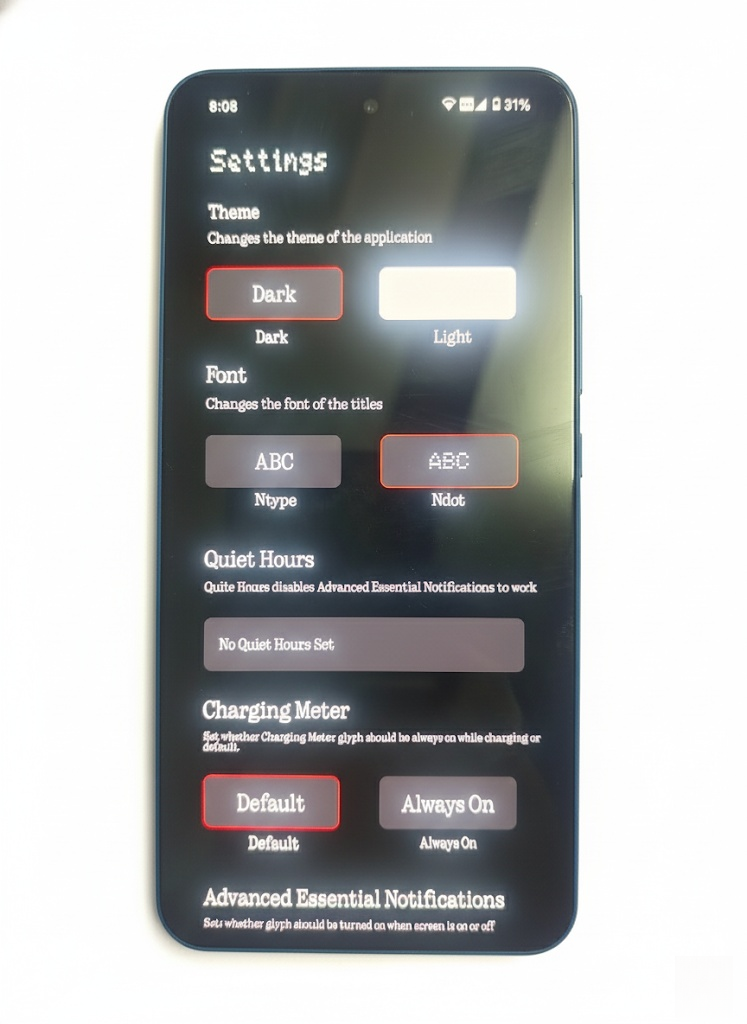
This settings icon is the gear icon in the top right corner on the main page which shows all the apps categorized as shown here
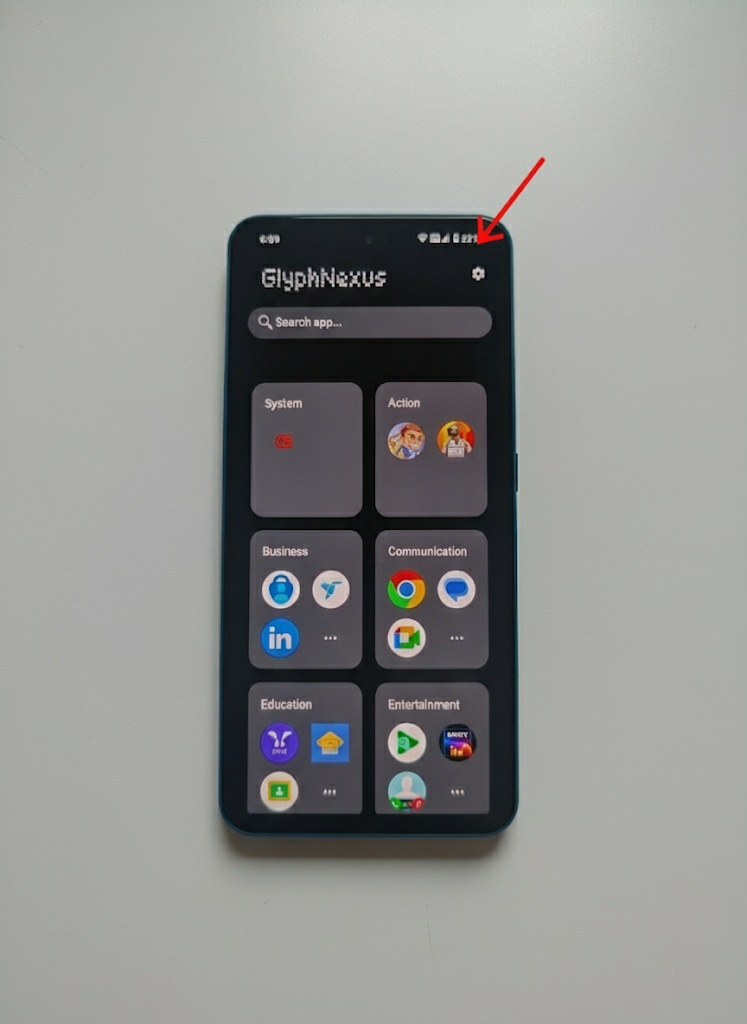
The Settings have some options which will be useful like the option to select between NDot and NType fonts, option to choose between dark mode and light mode, Default and Always on for Charging Meter for supported models and some more information like About app page, Changelogs which is updated after every update, Feedback option
6. Feedback:
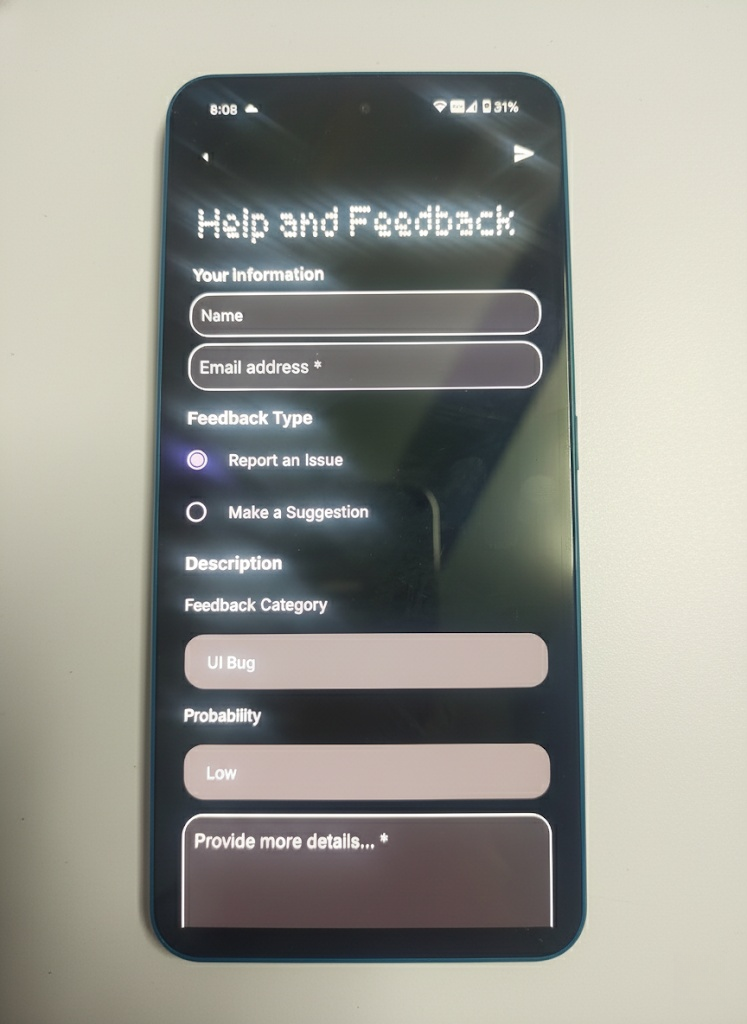
This option is available in the ‘Settings’ option to reach out to me for any issues with the app or any bugs. This has logs as well if needed so I can understand the issues better. But it stores logs for 24 hours only. After 24 hours it deletes the old logs and starts logging again. The feedback page is as shown below
Thank you guys for reading this. Hope you can understand.
Note: Took the help of AI for some of the images or videos
