Essential Notifications on the Nothing Phone (3) aren’t just another feature, they’re the core of what the Glyph Interface stands for: Focus.
Here’s how it works, and why it’s one of the most thoughtful parts of Nothing OS:
🤨 We all get too many notifications. But not every ping deserves your attention, especially when you're locked in.
That’s where the rules in Essential Notifications come in handy. It filters your world down to what actually needs you.
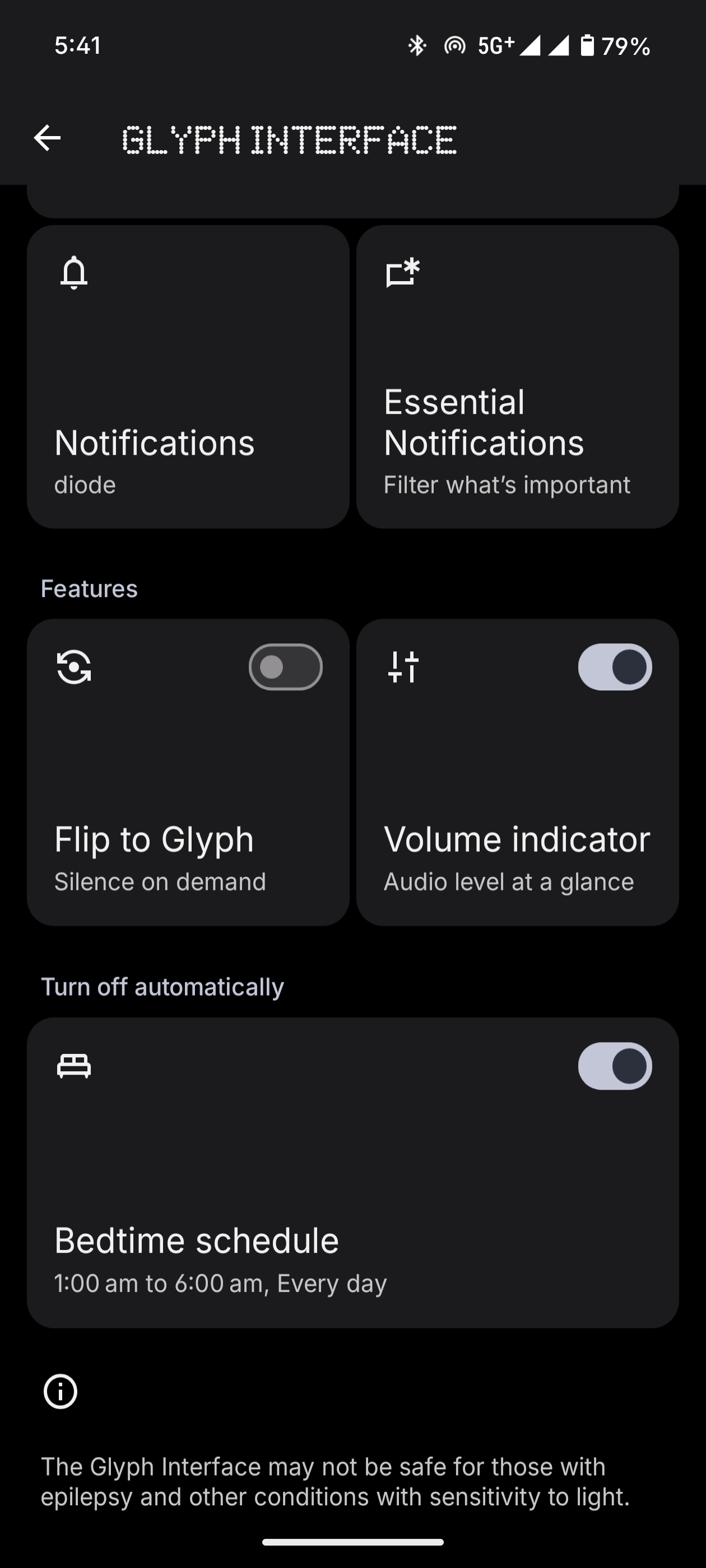
You’ll find it under Settings → Glyph Interface → Essential Notifications. Tap ‘New Rule’
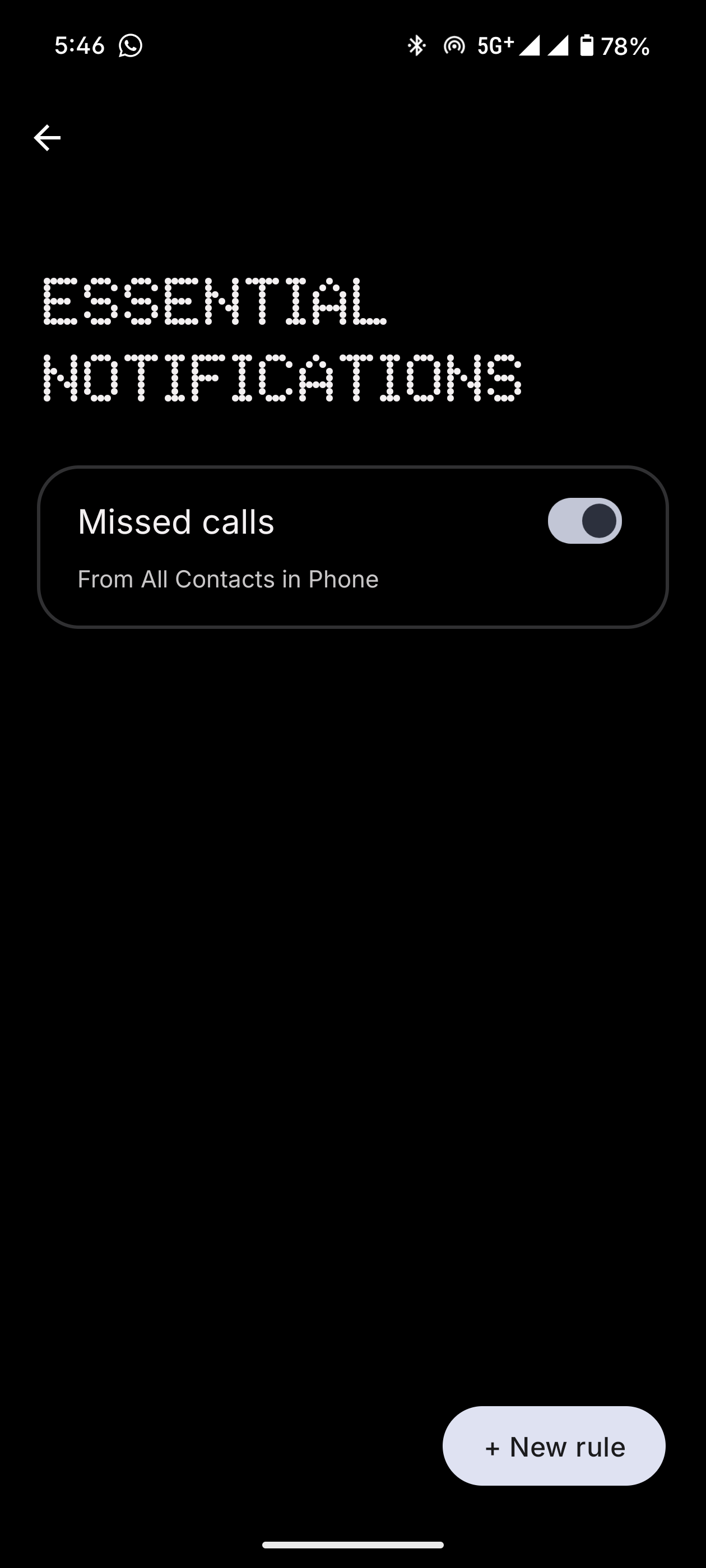
This is where you can be specific & create custom rules for notifications that show up on your Glyph Matrix.
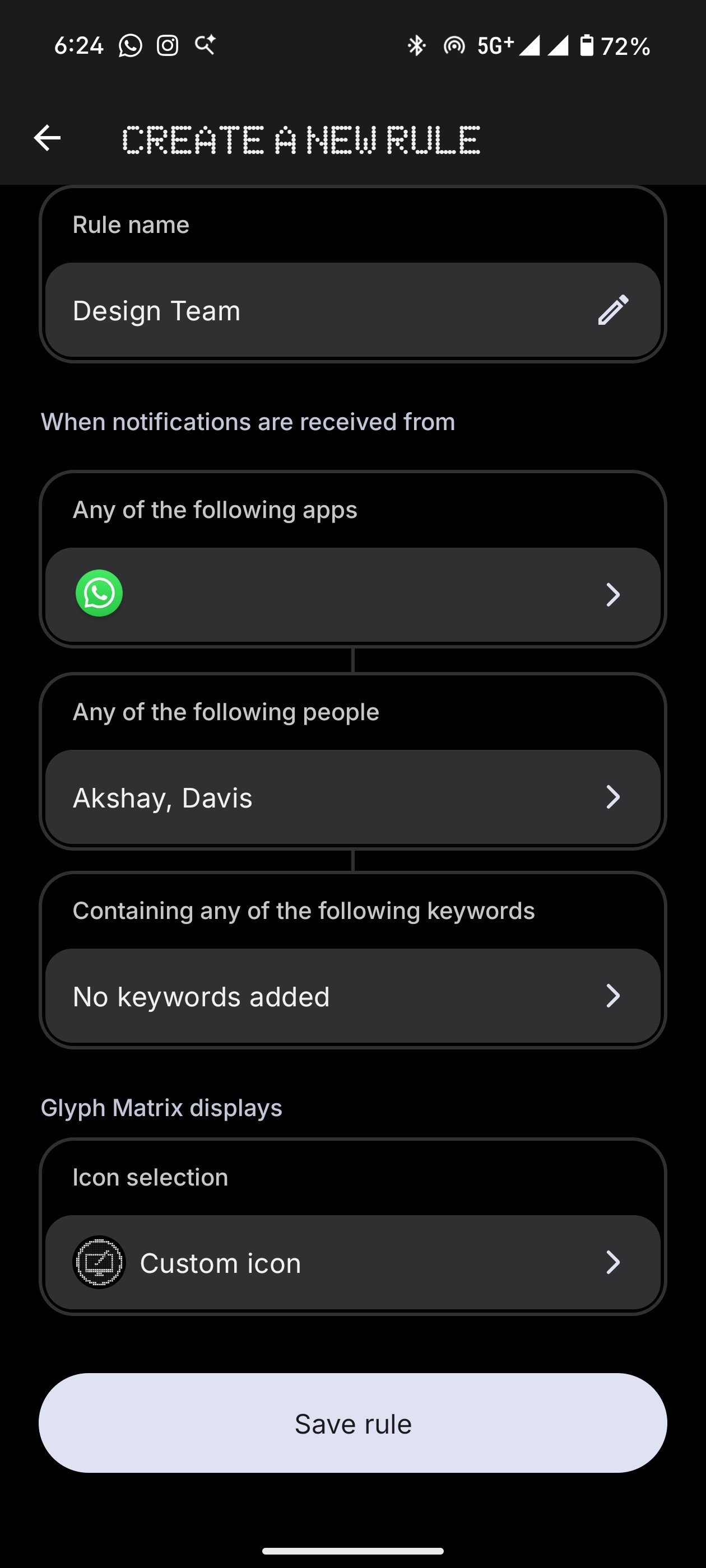
1. Name the Rule, eg. Design Team
2. Choose the app(s), eg. WhatsApp/Slack
3. Pick contact(s) for the rule
4. Add keywords (if any) to further filter notifications
5. Set an icon
Let's dive deeper into the icons. 👾
Each rule ends with choosing an icon.
You can use one of the preset Nothing icons, or generate a custom dot-matrix icon from an image.
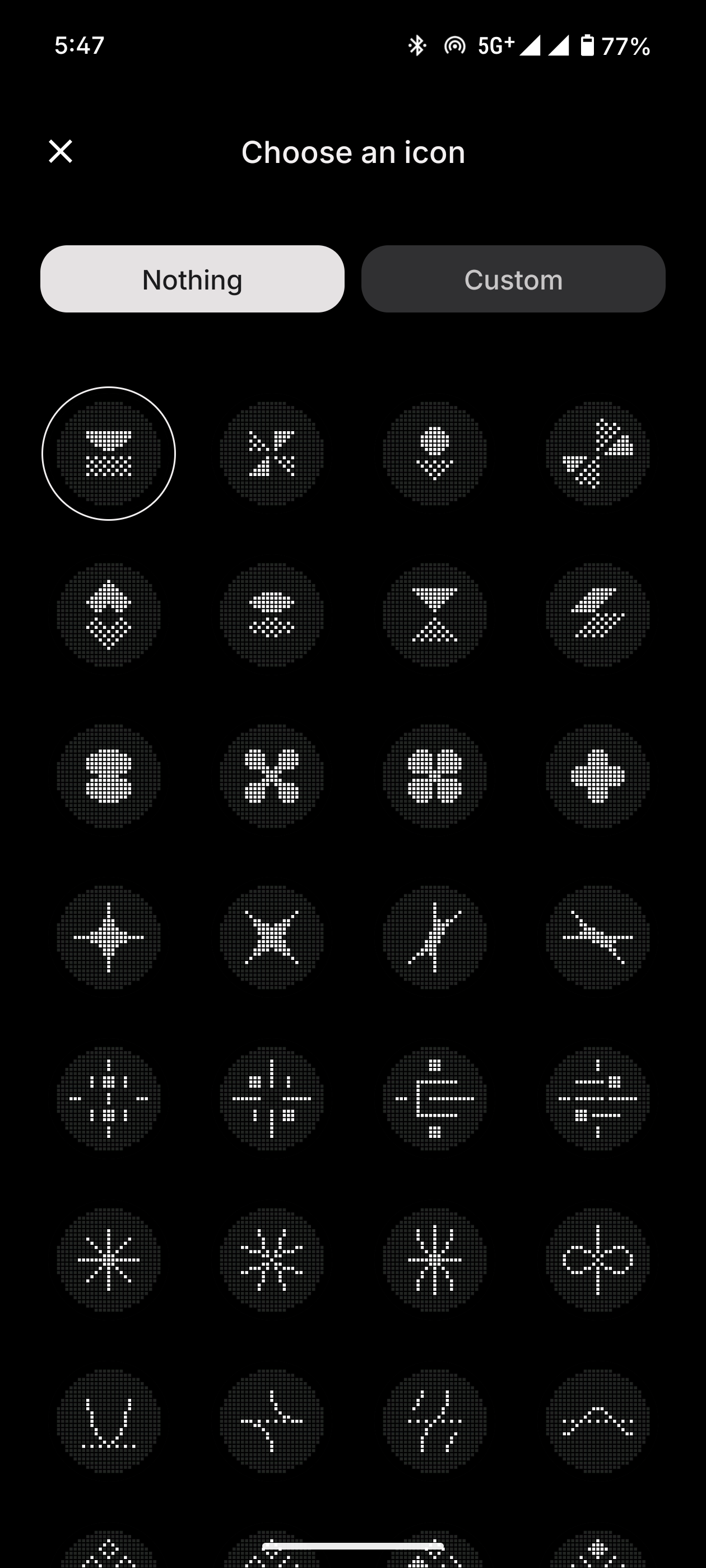
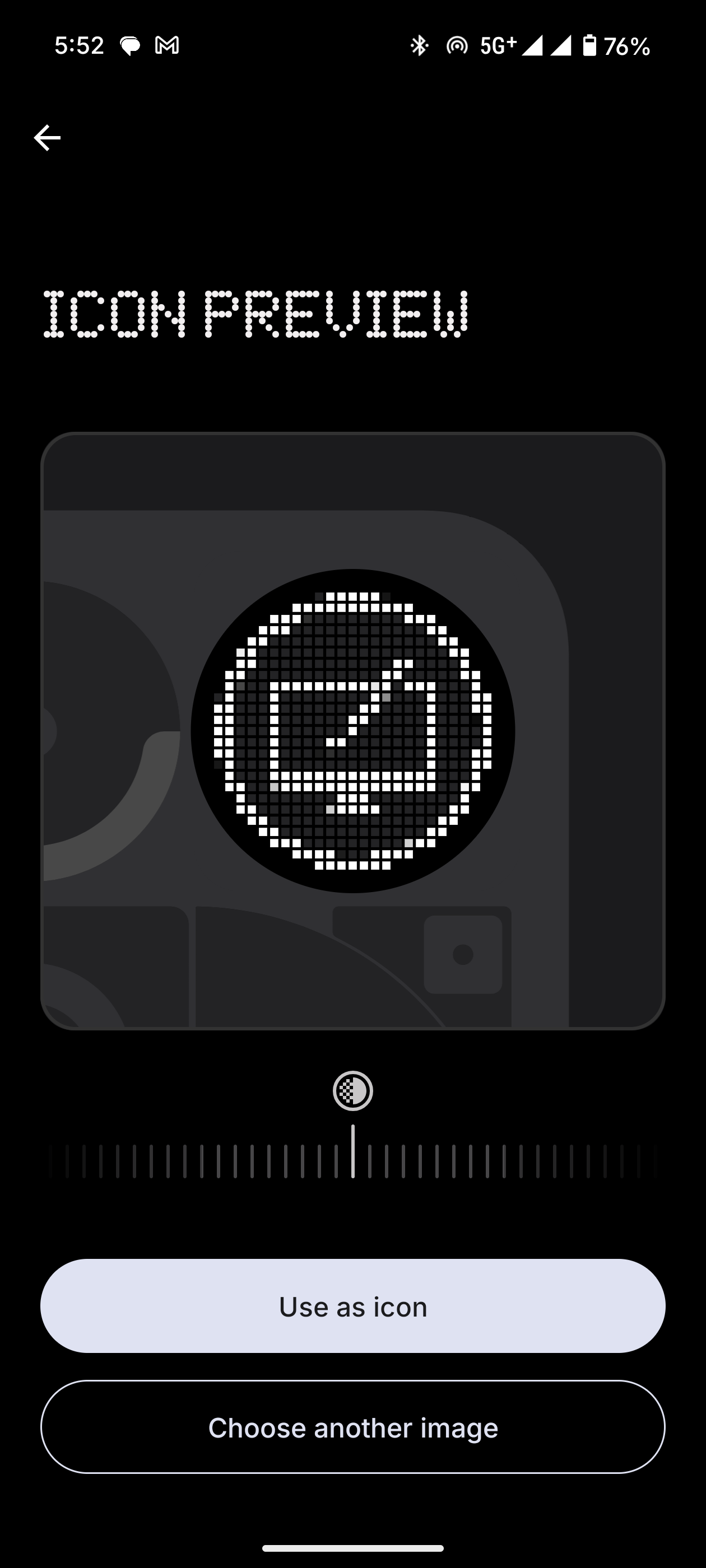
This helps you identify the notification's sender when a notification arrives, in the Glyph Matrix.
And finally, you save the rule.
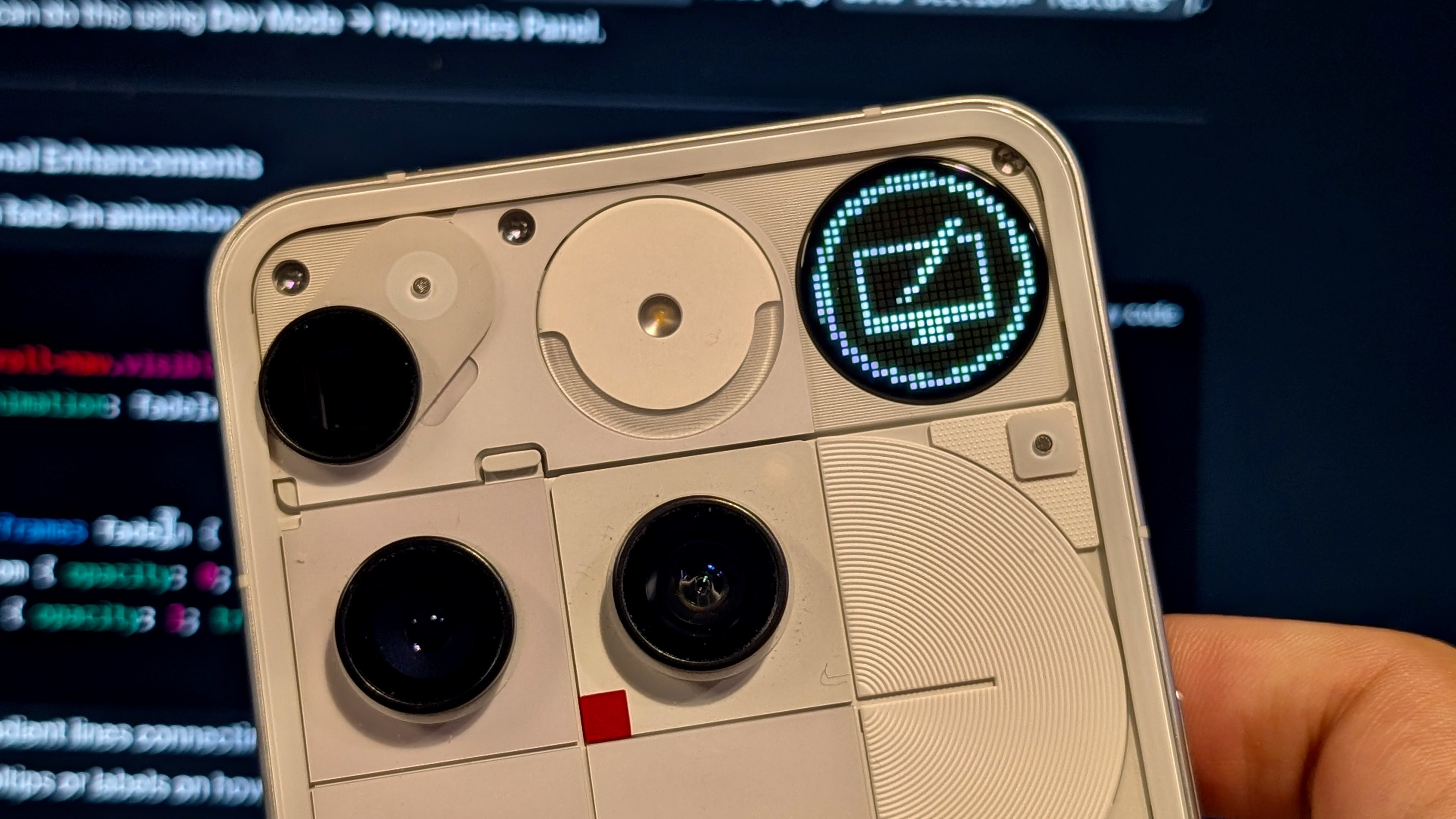
And that’s the full flow.
Once your rule is active, the Glyph Matrix will display the icon you assigned for the contact(s). A visual cue on the back of the phone when you're locked in with your Phone (3) flipped down.
Plus, you look cooler now. 🤝😎
