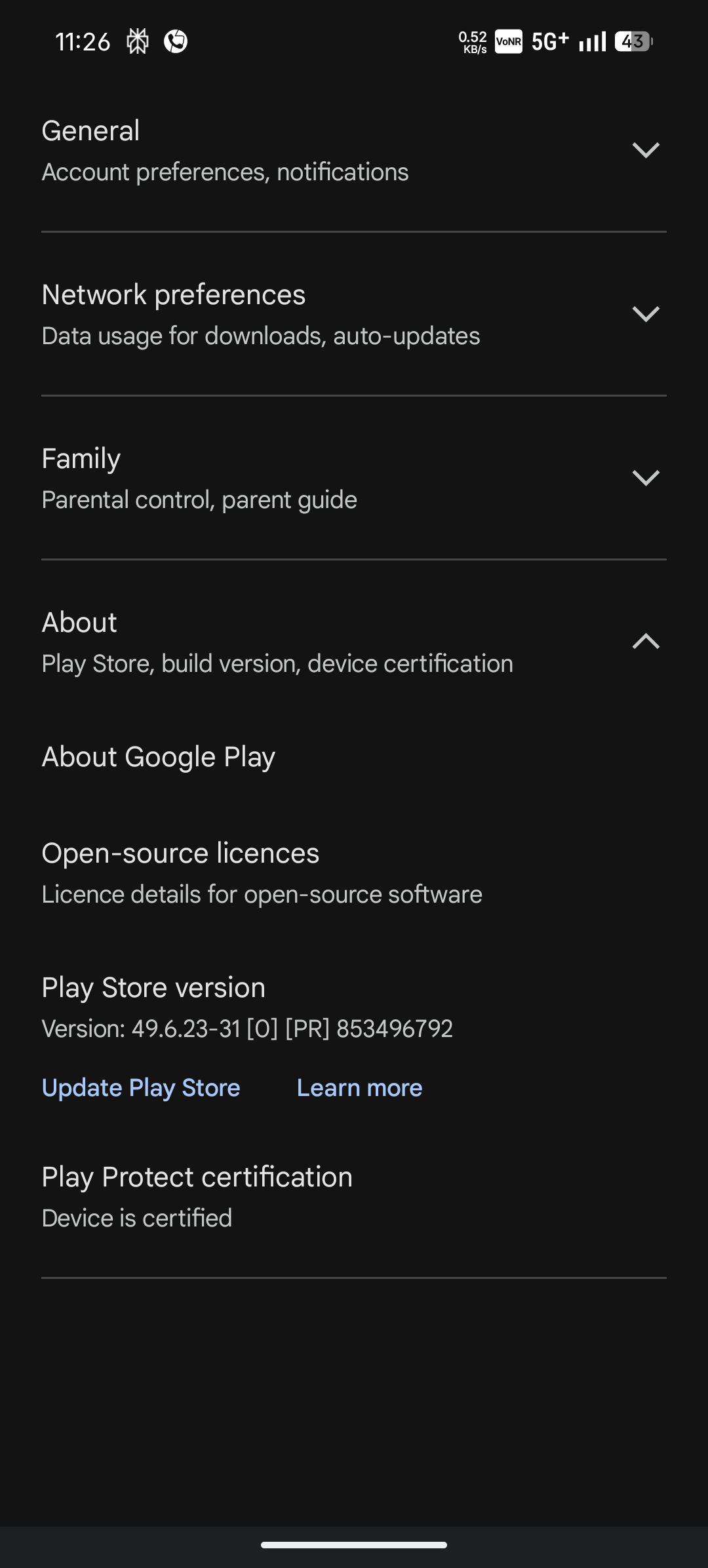
If you updated to NOS 4.0 and your Play Store now says your device is “Uncertified,” you aren’t alone. This is likely due to a signature mismatch or a missing pre-authentication API in the latest build.
Here is how to fix it using only built-in tools (no 3rd party apps required, though they are an option if you prefer).
Step 1: Find your GSF ID (Built-in Method)
Instead of downloading an app, you can use a hidden system diagnostic tool:
Open your Phone/Dialer app.
* Dial: *#*#426#*#*.
* The FCM Diagnostics page will open. Tap the three dots (top-right) and select Advanced Mode.
* Look for Device ID (it will be a 16-digit number, e.g., 4246…). This is your GSF ID.
Note: If the dialer code doesn’t work on your specific build, you can also download a “Device ID” app from the Play Store or 3rd party like evozi as a backup to find the same 16-character code.
Step 2: Register your ID with Google
* Go to the official Google Android Device Registration page.
* Sign in with your Google account.
* Paste your 16-digit ID into the “Android ID” box and click Register.
Step 3: Reset Google Apps (Crucial)
For the registration to take effect, you must clear the Play Store’s memory:
* Go to Settings > Apps > All apps > Show system.
* Clear Storage/Data for these three apps:
* Google Play Store
* Google Play Services
* Google Services Framework
* Restart your phone immediately.
Wait for few days
Google can take several hours to whitelist your device. If it still shows “Uncertified” after a day, Nothing may need to release a small Hotfix update to fix the underlying API issue but I hope this method will work because it worked for me. Check Settings > System > System Update regularly.
Note: If you still see “device is not certified” then click “fix device issue” , remember patience is the key so be patient because it will take some time
Before
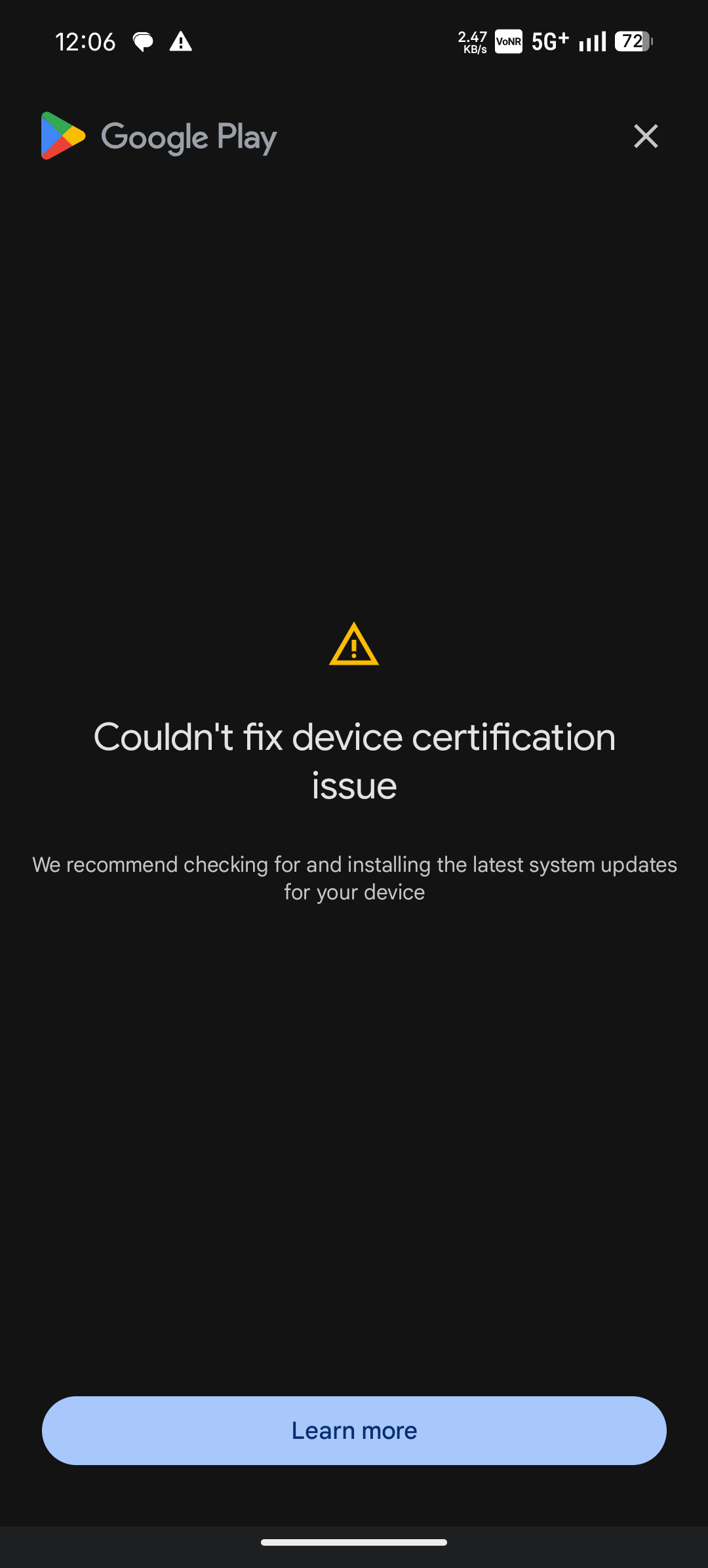
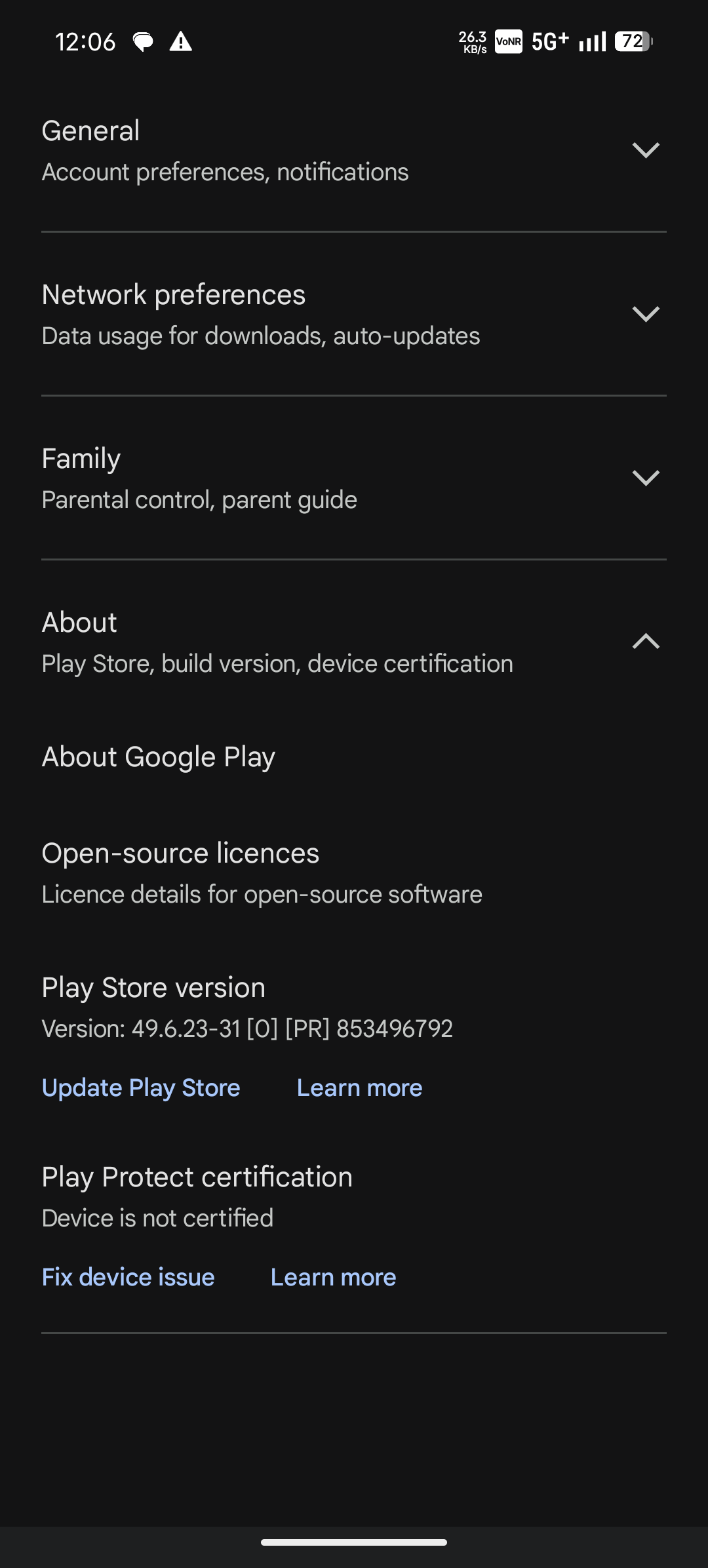
After