Hello everyone,
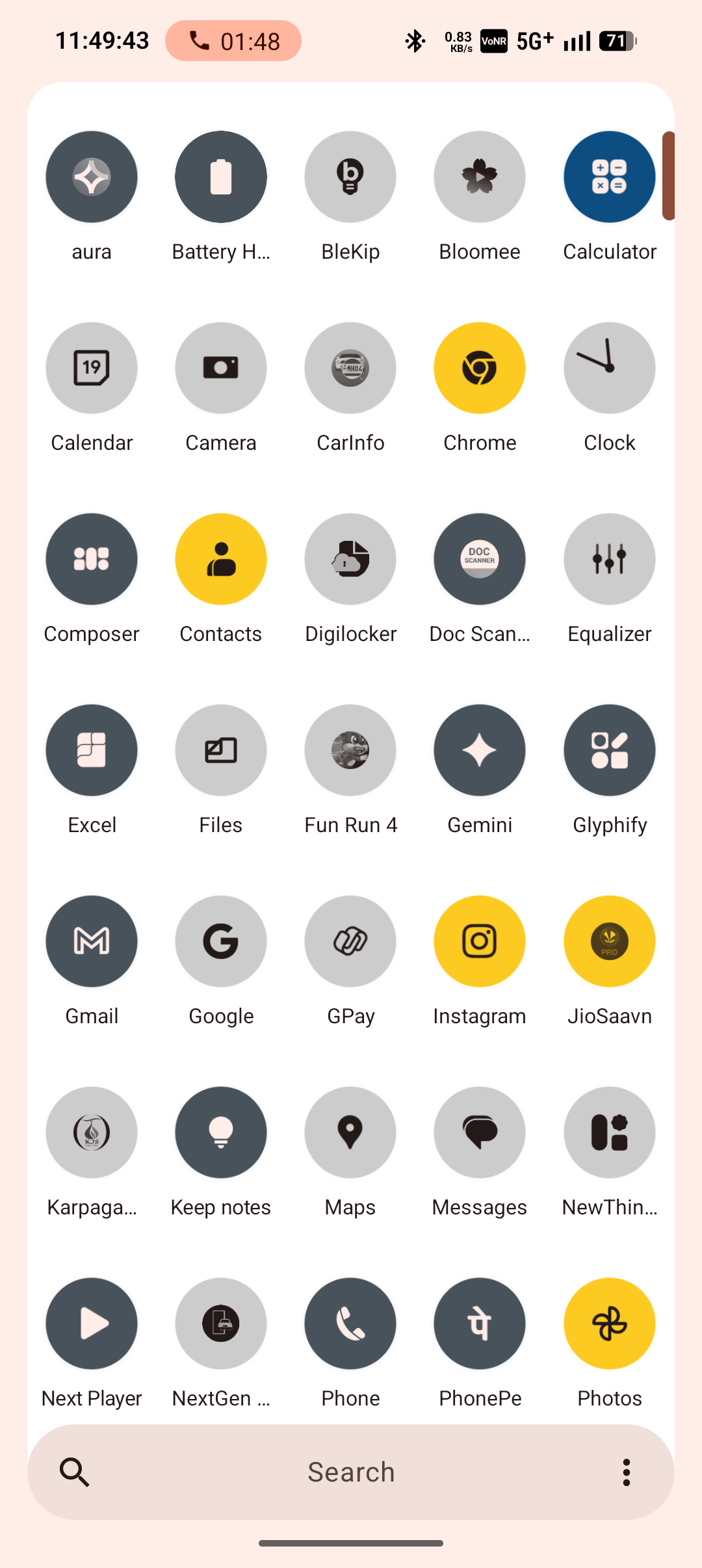
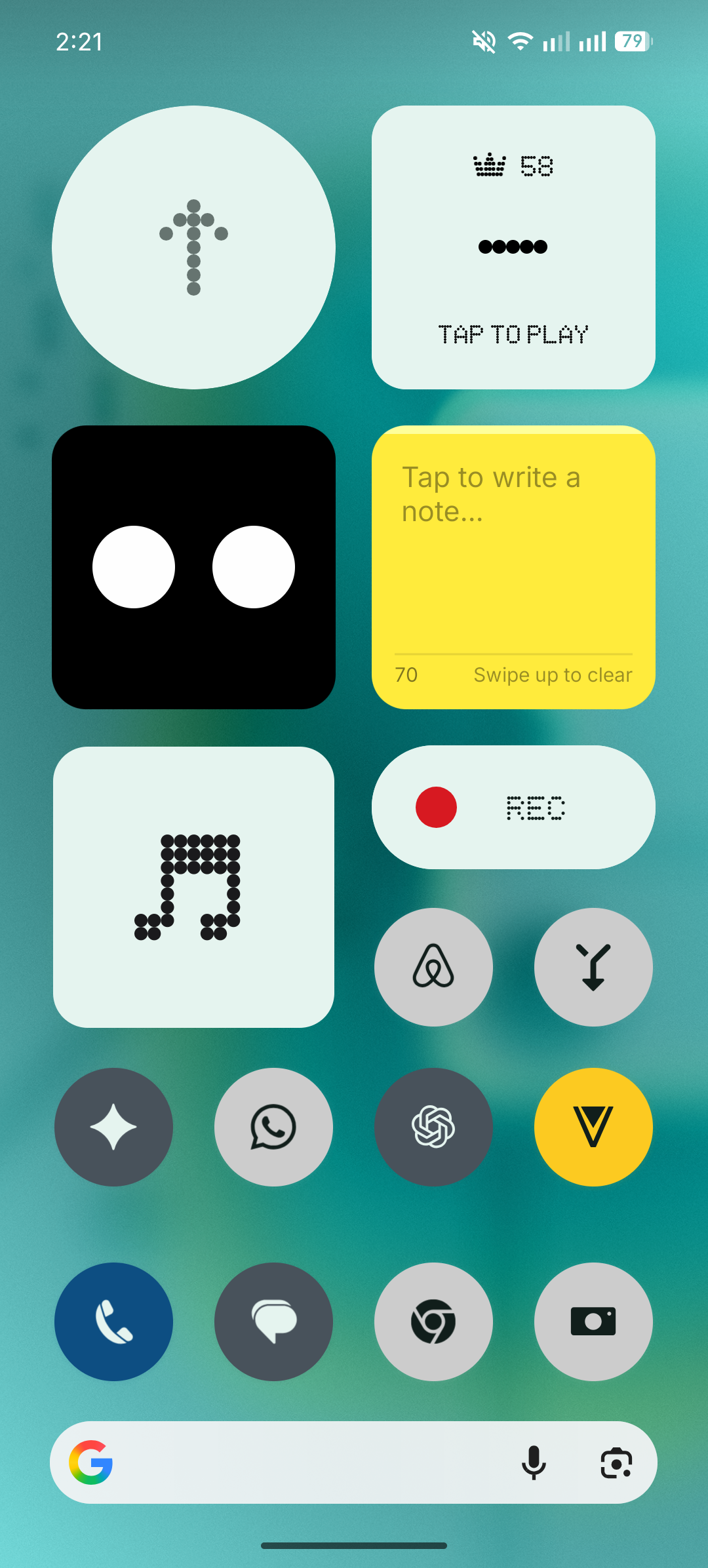
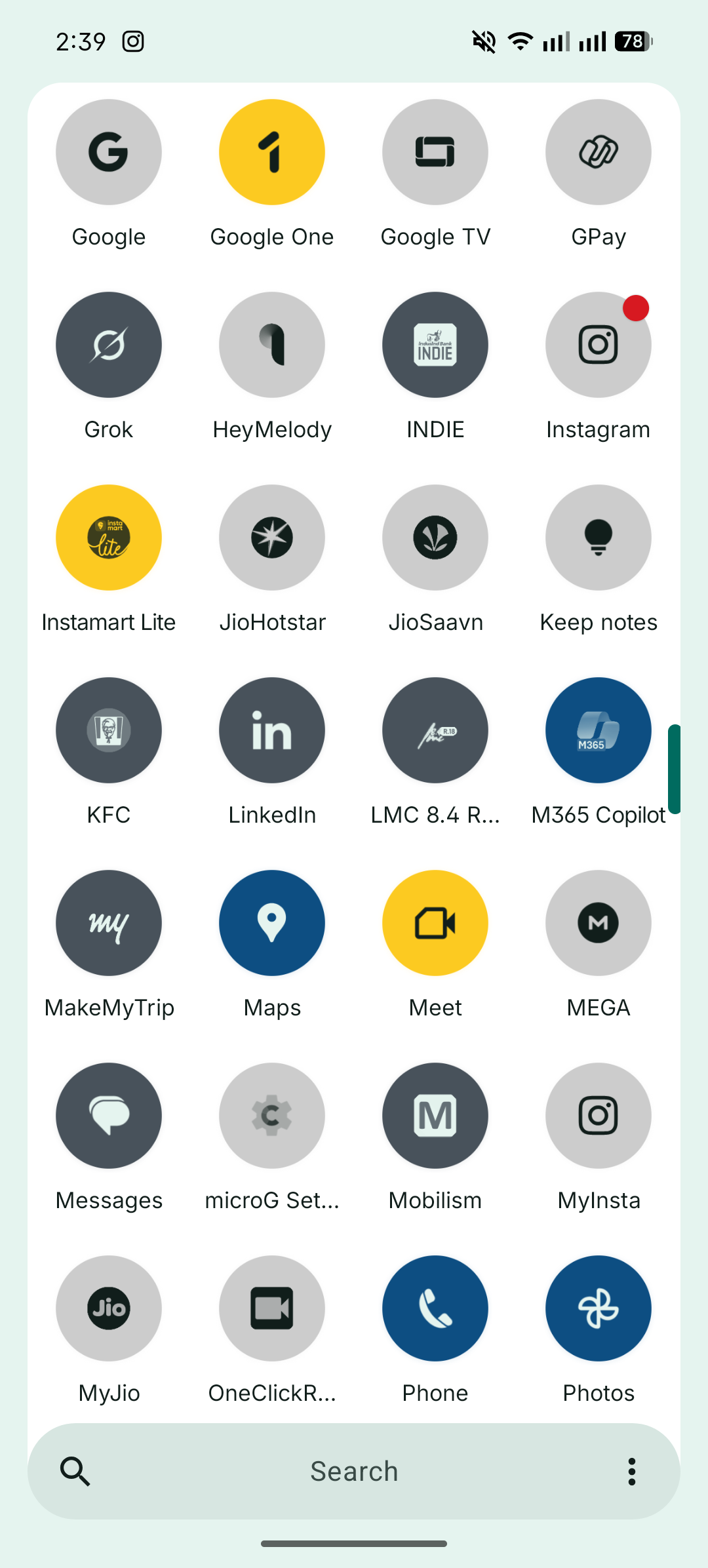
The Bauhaus icon theme, which was previously exclusive to the Nothing Phone (2a) Special Edition, can now be used on all Nothing Phone models.
To apply this, you’ll need a computer and ADB
The entire process takes about 5 minutes from a PC.
Installation Steps
1. Download ADB & Fastboot tools
Download and install the ADB and Fastboot tools on your computer.
2. Enable Developer Options on your phone
Go to:
Settings → About Phone → Tap “Build Number” 7 times
3. Enable USB Debugging
Go to:
Settings → System → Developer Options → Enable USB Debugging
4. Download SetEdit app
Download SetEdit from this GitHub link:
Here
Rename the downloaded file so it appears as:
SetEdit.apk
5. Prepare ADB folder
Extract the downloaded platform-tools ZIP file to your desktop
Rename the extracted folder to adb
Move this adb folder to your C:\ drive
6. Copy the APK
Open the adb folder
Copy SetEdit.apk inside the same adb folder
Your folder should now contain adb files + SetEdit.apk.
7. Open Command Prompt Press the Windows key, type cmd, and open Command Prompt.
Enter the following commands one by one:
Check your phone screen and allow the USB debugging authorization prompt.
Then paste this command:
adb install –bypass-low-target-sdk-block SetEdit.apk
Once you see “Performing Streamed Install”, the SetEdit app should appear on your phone.
8. Enable the Bauhaus theme
Open the SetEdit app and grant permissions
In the search bar at the top, type:
theme_bauhaus_enable
In the System Table, change its value to 1
(To disable later, change it back to 0)
⚠️ Warning: Do not modify any other settings in SetEdit.
That’s it — you can now use the NP2a SE exclusive Bauhaus icon pack on your Nothing device.
Credits: @Spike, +starcmm, Mr Nothing